Sample request time-to-value optimization
Getting a brand to its first automatic sample approval sooner: onboarding for five kinds of account, a reworked rules workflow and three first-visit directions.
- Onboarding
- Workflow rework
Reacher’s Sample Requests page is where a brand reviews creators who ask for a free sample. This case is about how quickly a brand gets from opening it to its first automatic approval, in three pieces: what each kind of account sees the first time, how a rule is built and turned on, and what the first-visit page leads with.
The workflow rework is one flow: choose a recipe, build an approval or rejection rule while previewing its effect on the queue, review it, turn it on, then see every decision, and why, in Activity. The directions compare three ways to open the page: see it work, watch and learn, or a simple benefit with a video.
The creators, the shop and the numbers in these screens are illustrative sample data.
Onboarding for different ICPs
One Sample Requests page, five kinds of account: what each one sees the first time it opens the page, and what it is offered.
 View full size (opens in a new tab)
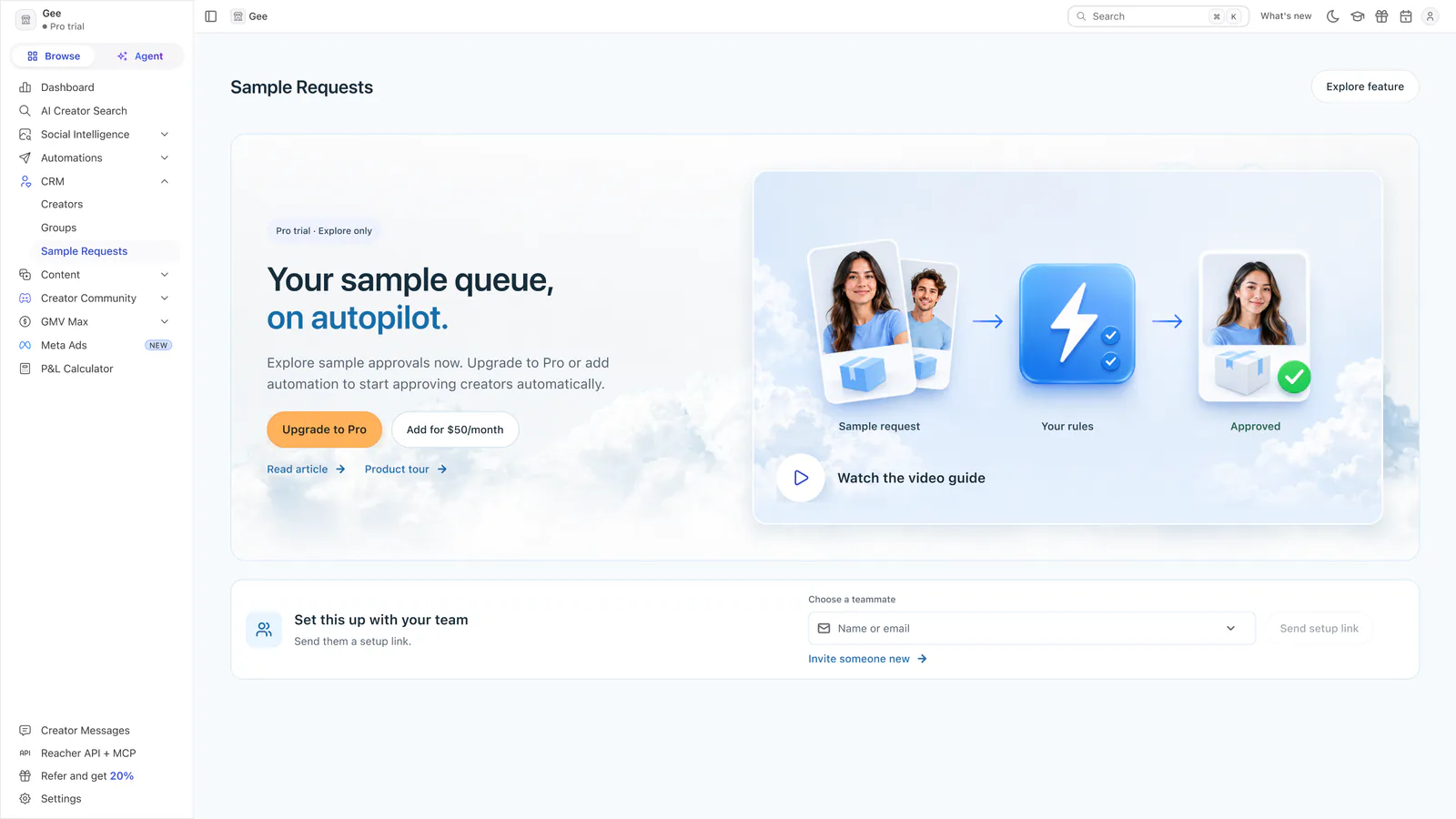
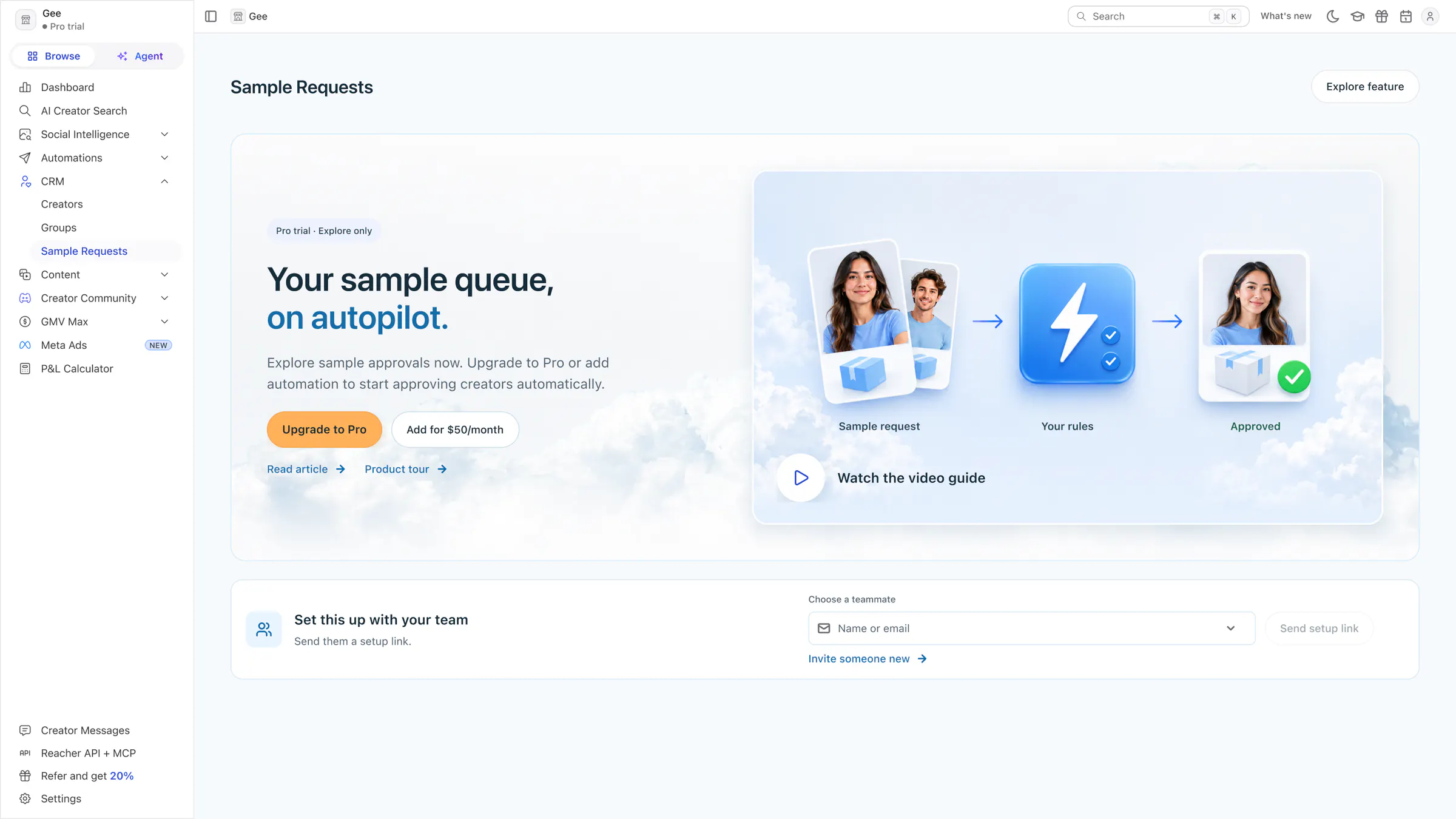
Free signup → Pro or add-on
A new account can explore sample approvals, then upgrade to Pro or add automation for $50 a month. A row lets a teammate set it up.
 View full size (opens in a new tab)
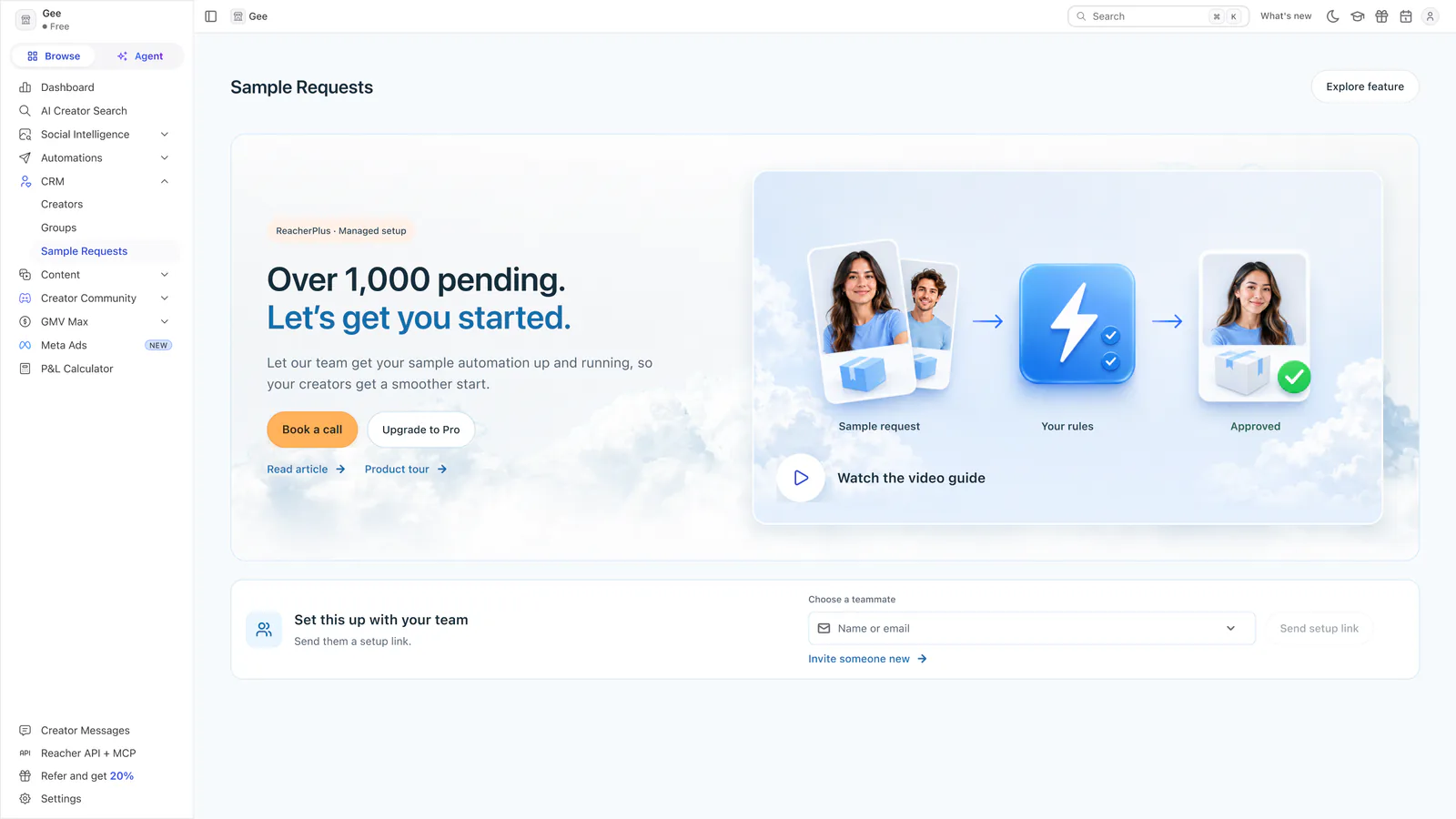
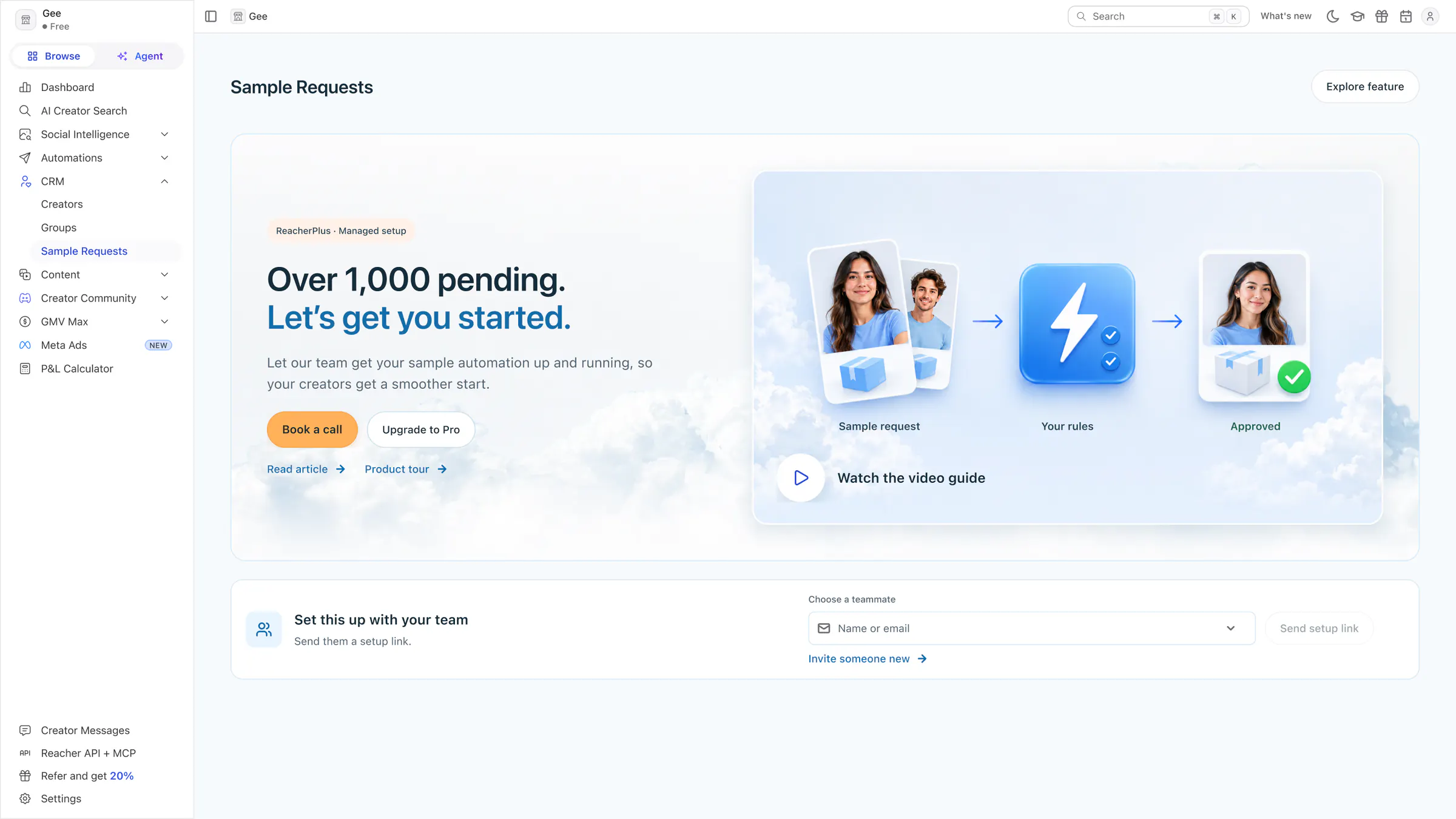
Free signup with a backlog → ReacherPlus
For a signup with over 1,000 pending requests, ReacherPlus managed setup leads with Book a call, and Upgrade to Pro is the second choice.
 View full size (opens in a new tab)
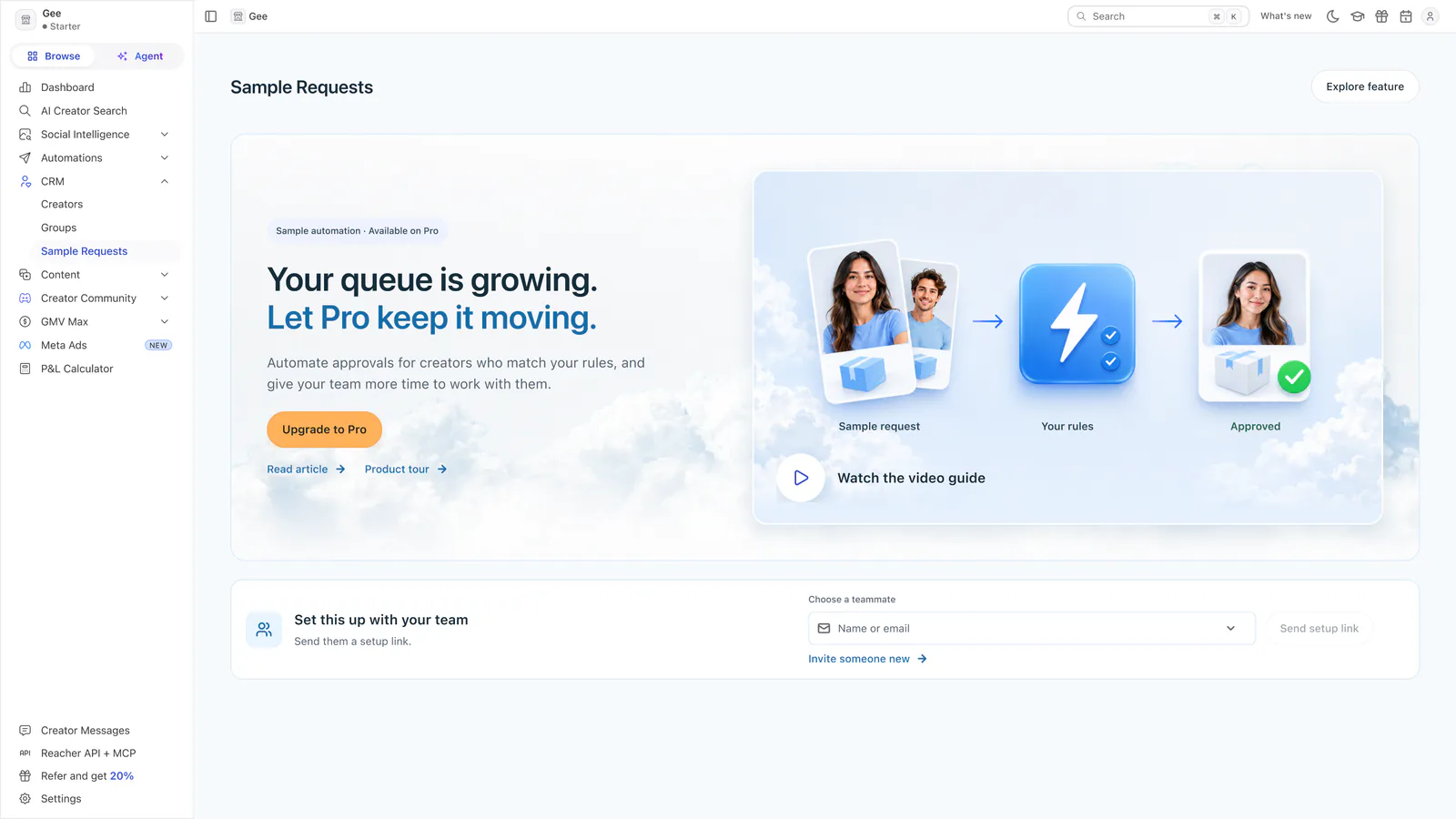
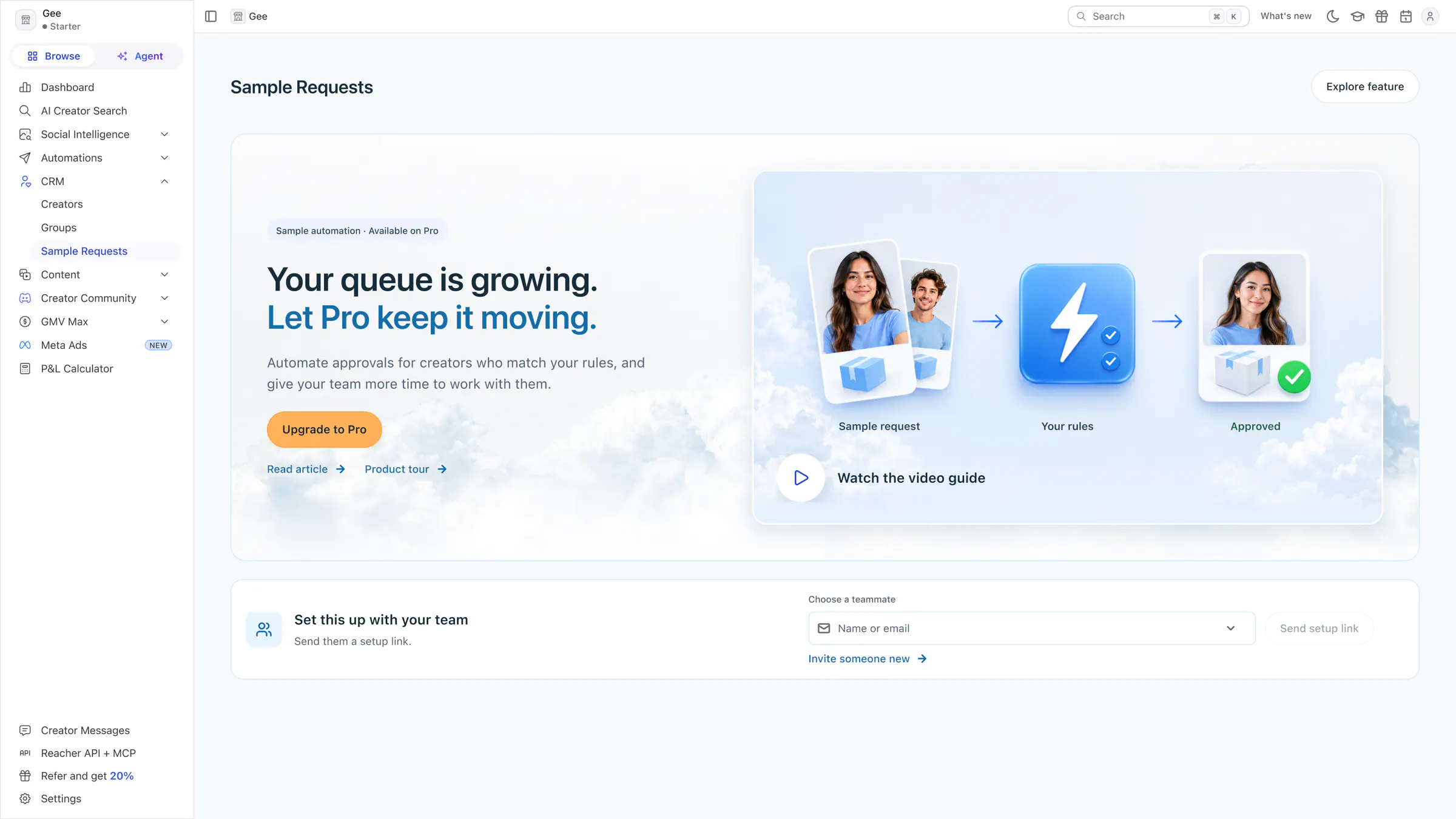
Heavy Starter → Pro
“Your queue is growing. Let Pro keep it moving.” One Upgrade to Pro button for a Starter account whose queue has grown.
 View full size (opens in a new tab)
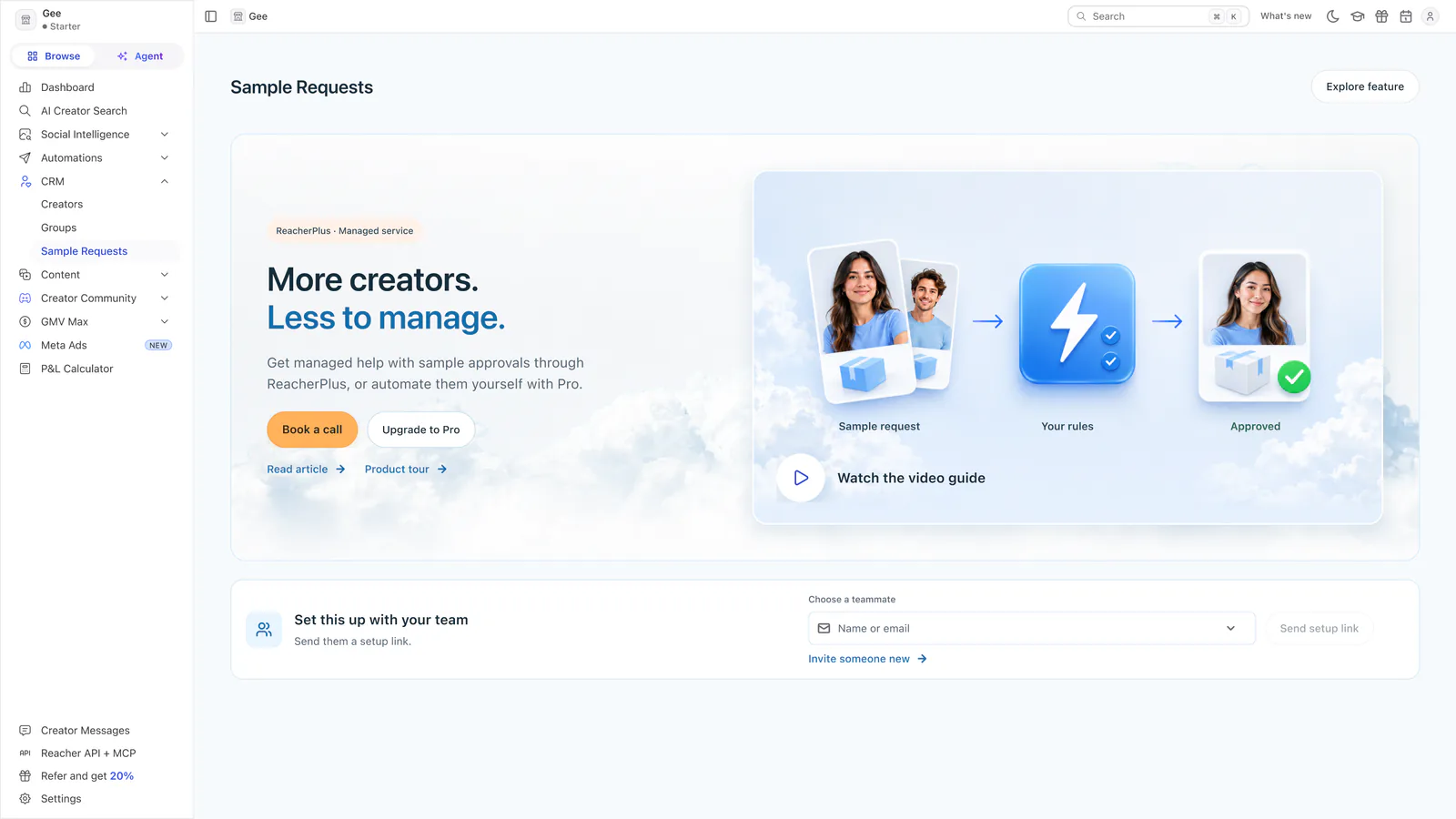
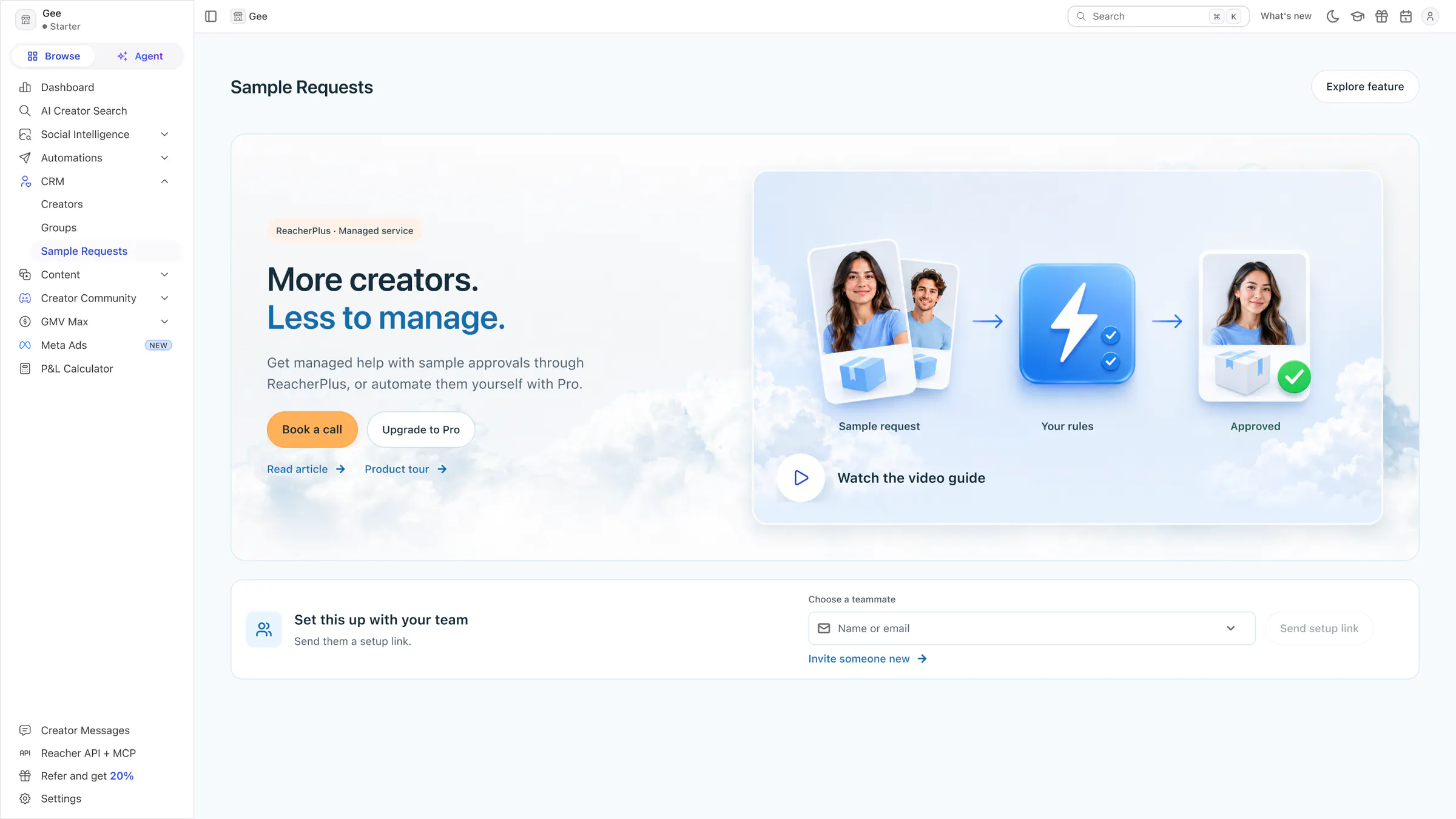
Heavy Starter → ReacherPlus
For an established Starter account, the ReacherPlus managed service (Book a call) sits beside self-service Pro.
 View full size (opens in a new tab)
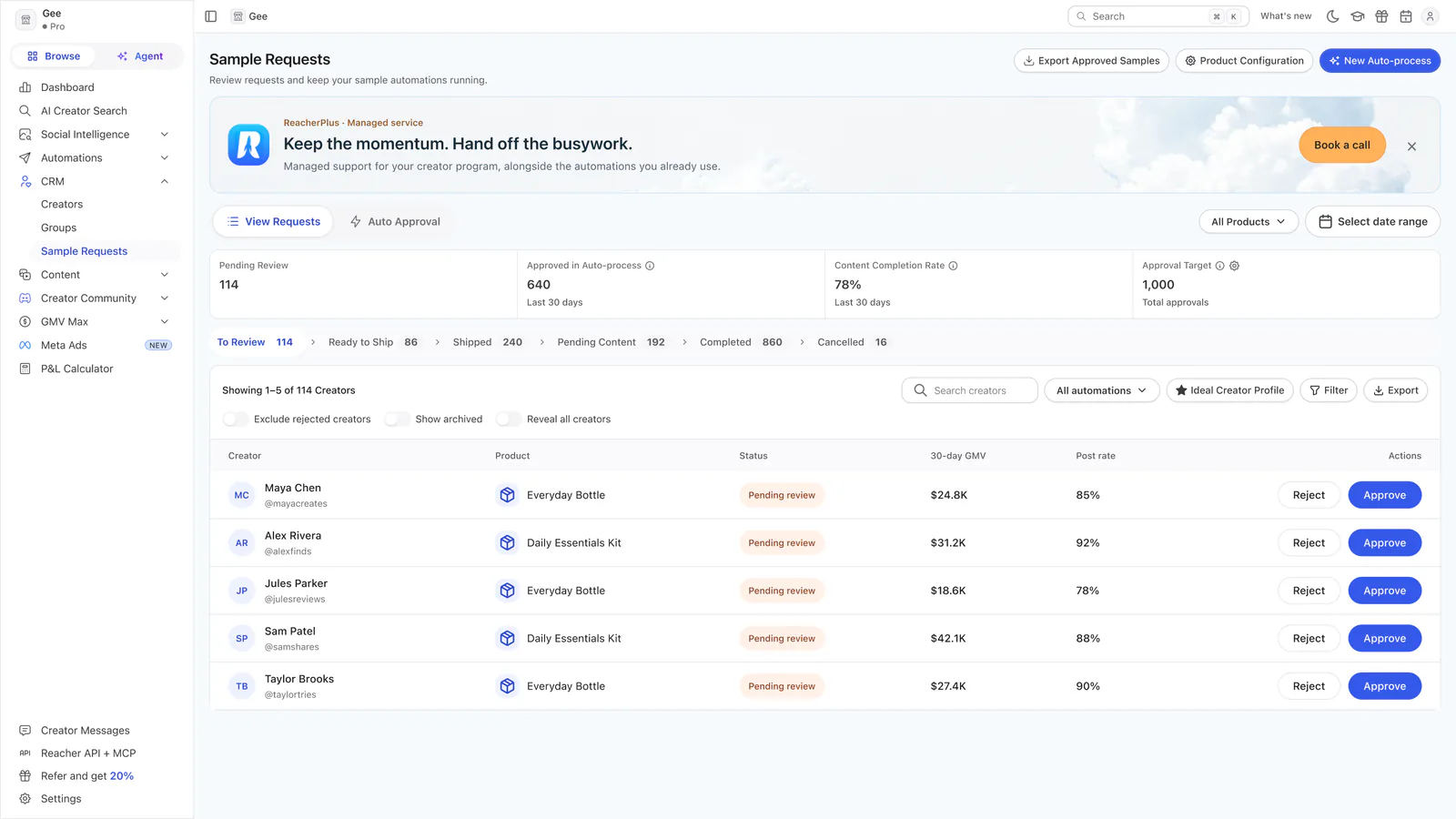
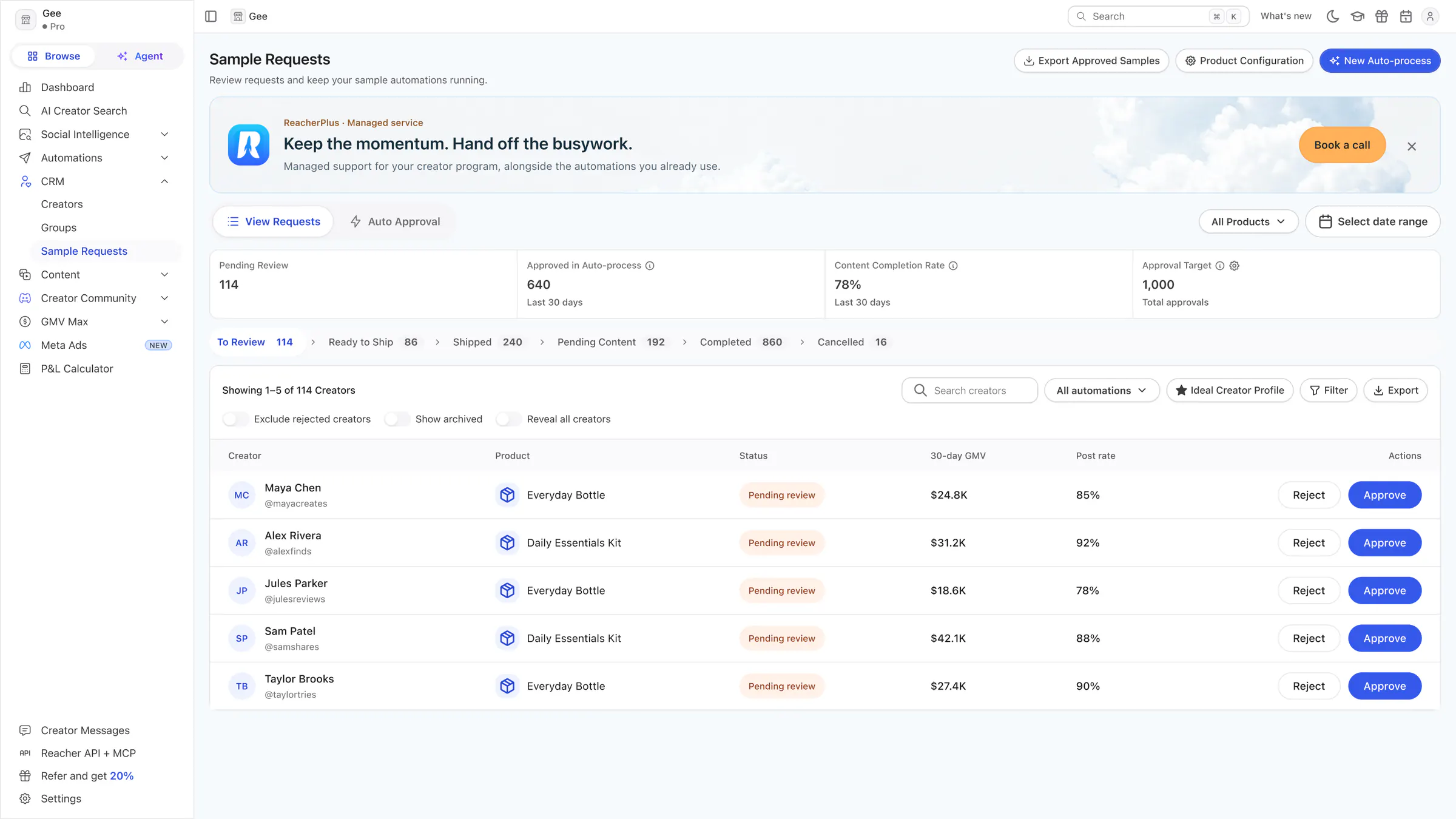
Heavy Pro → ReacherPlus, in the existing page
The existing Sample Requests page for a heavy Pro account, with a small dismissible ReacherPlus banner added above the tabs.
Workflow rework
From choosing a recipe to seeing every decision and why.
 View full size (opens in a new tab)
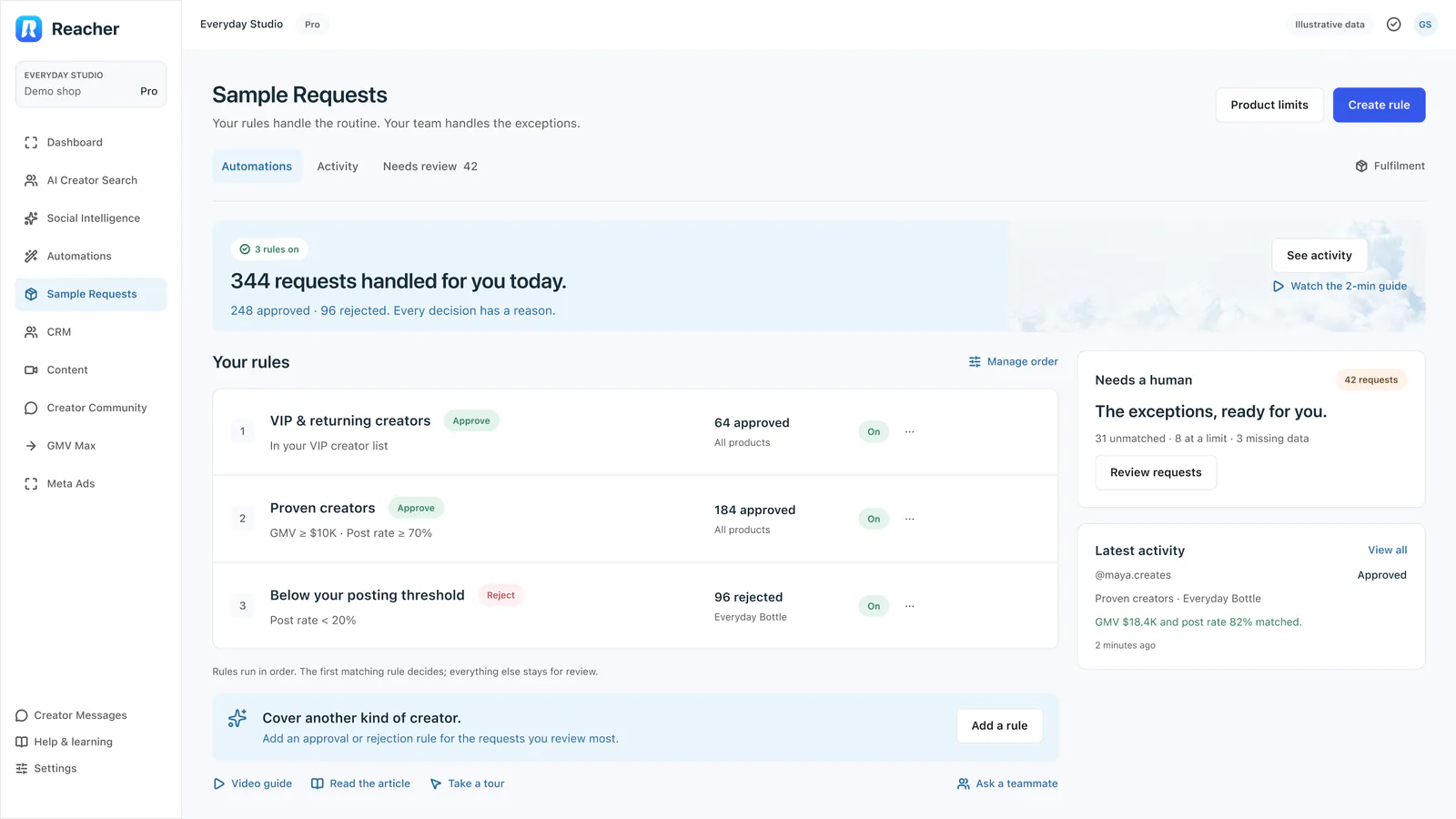
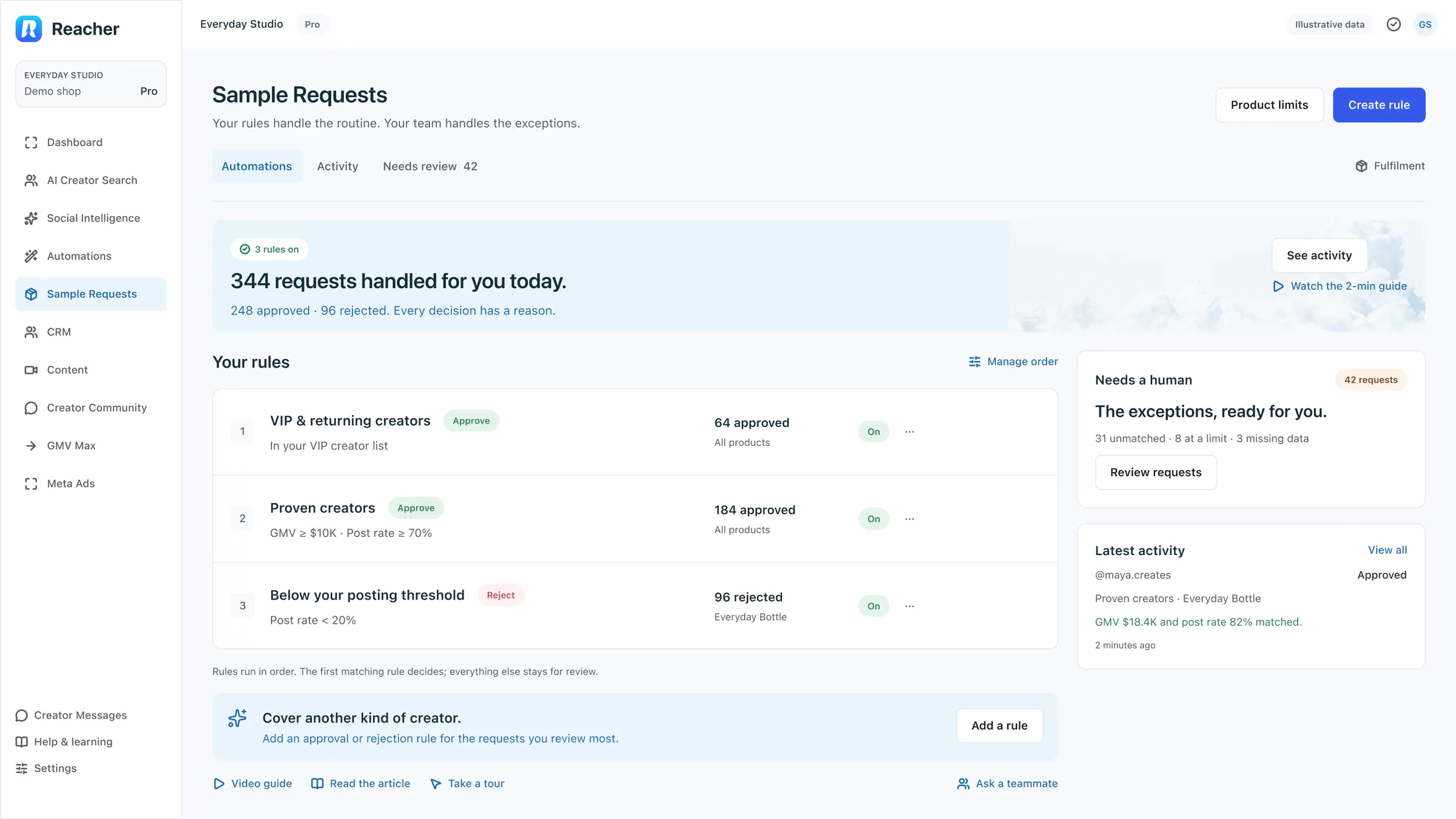
Automations workspace
Your rules handle the routine; your team handles the exceptions. A summary of 344 requests handled today, three rules in order, and the requests that need a person.
 View full size (opens in a new tab)
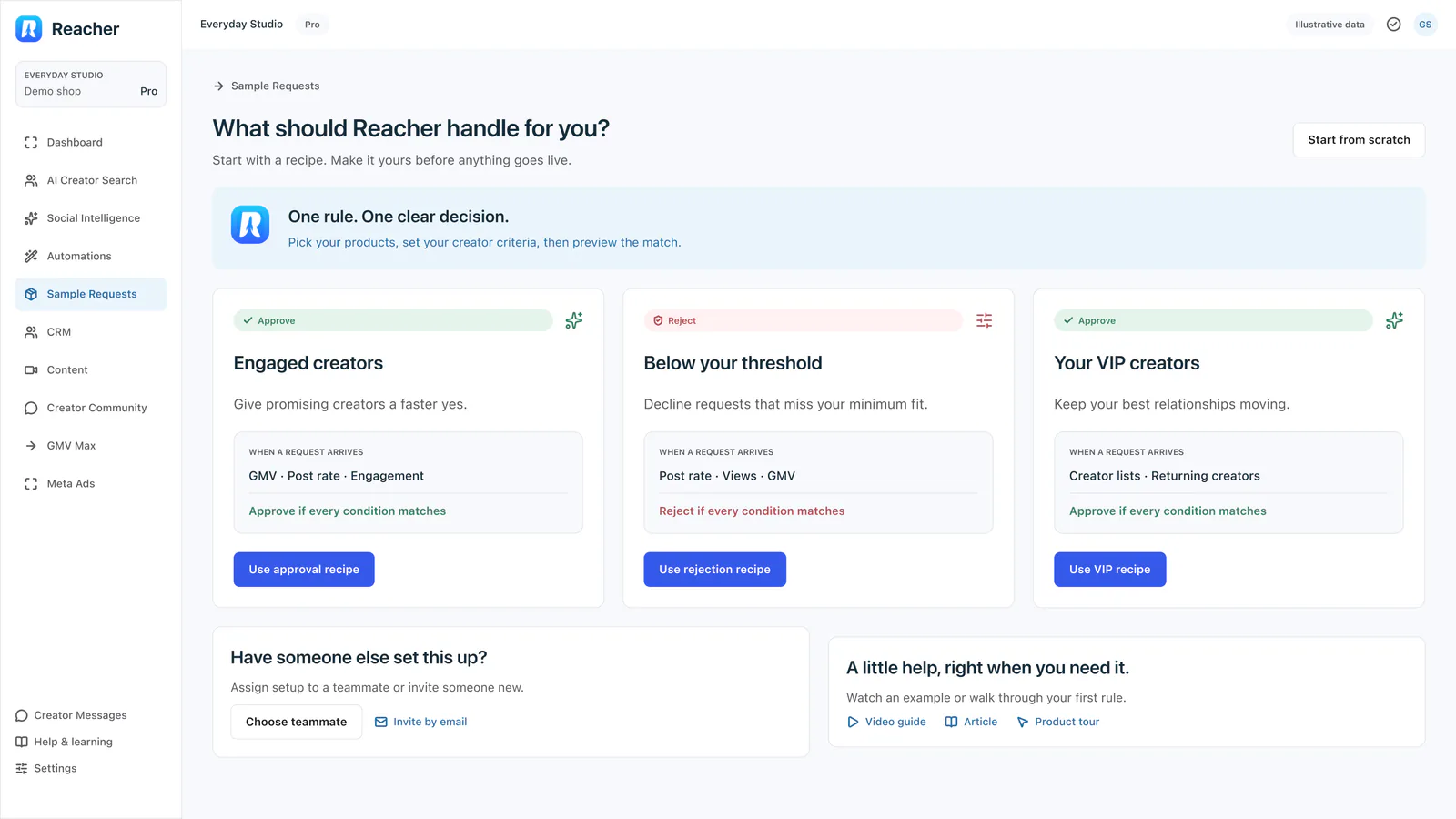
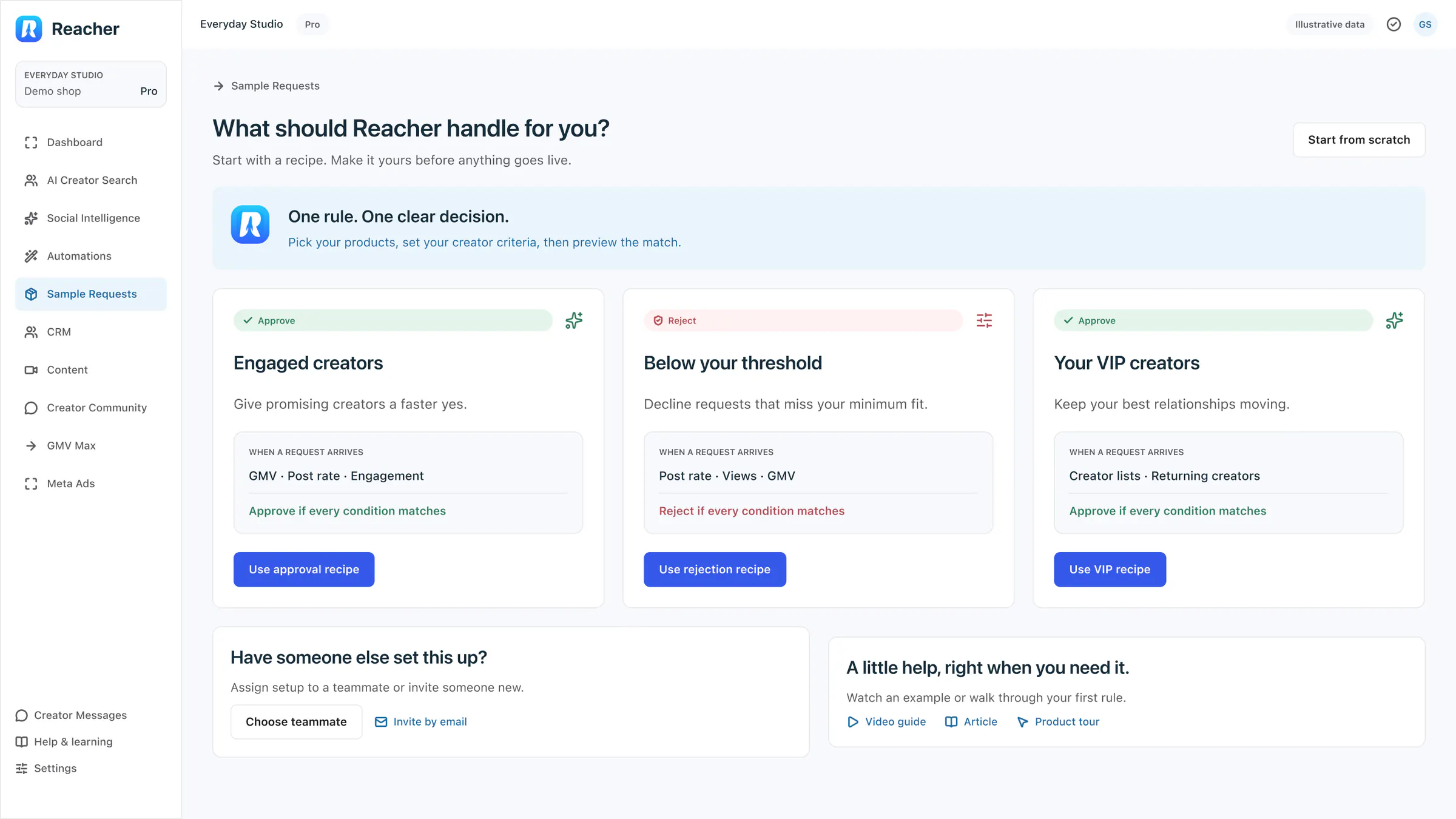
Choose a rule
Start from a recipe (Engaged creators, Below your threshold or Your VIP creators), start from scratch, or hand setup to a teammate.
 View full size (opens in a new tab)
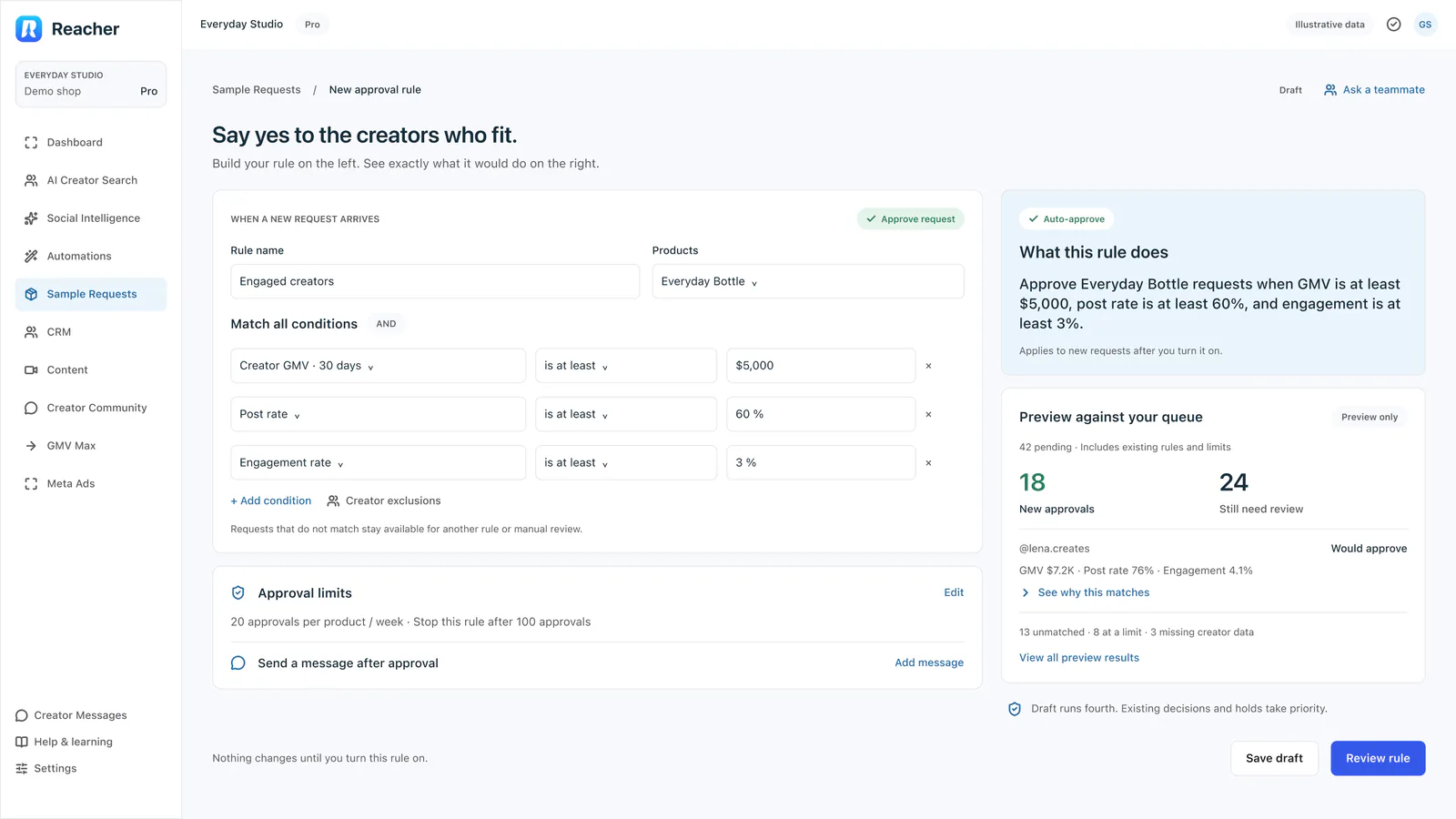
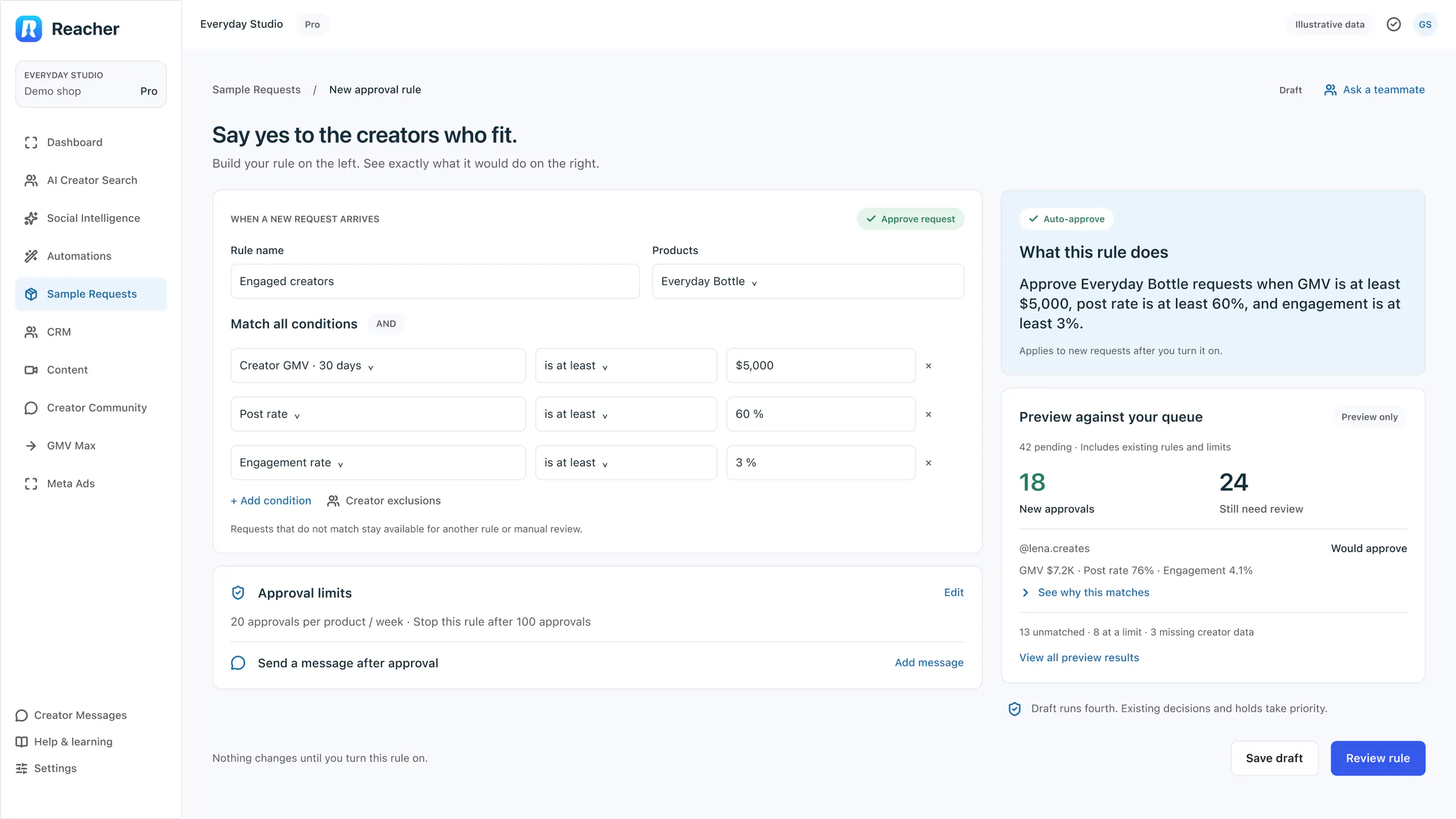
Build an approval rule
Conditions on the left; a plain-language summary and a preview against the queue on the right: 18 would be approved and 24 still need review.
 View full size (opens in a new tab)
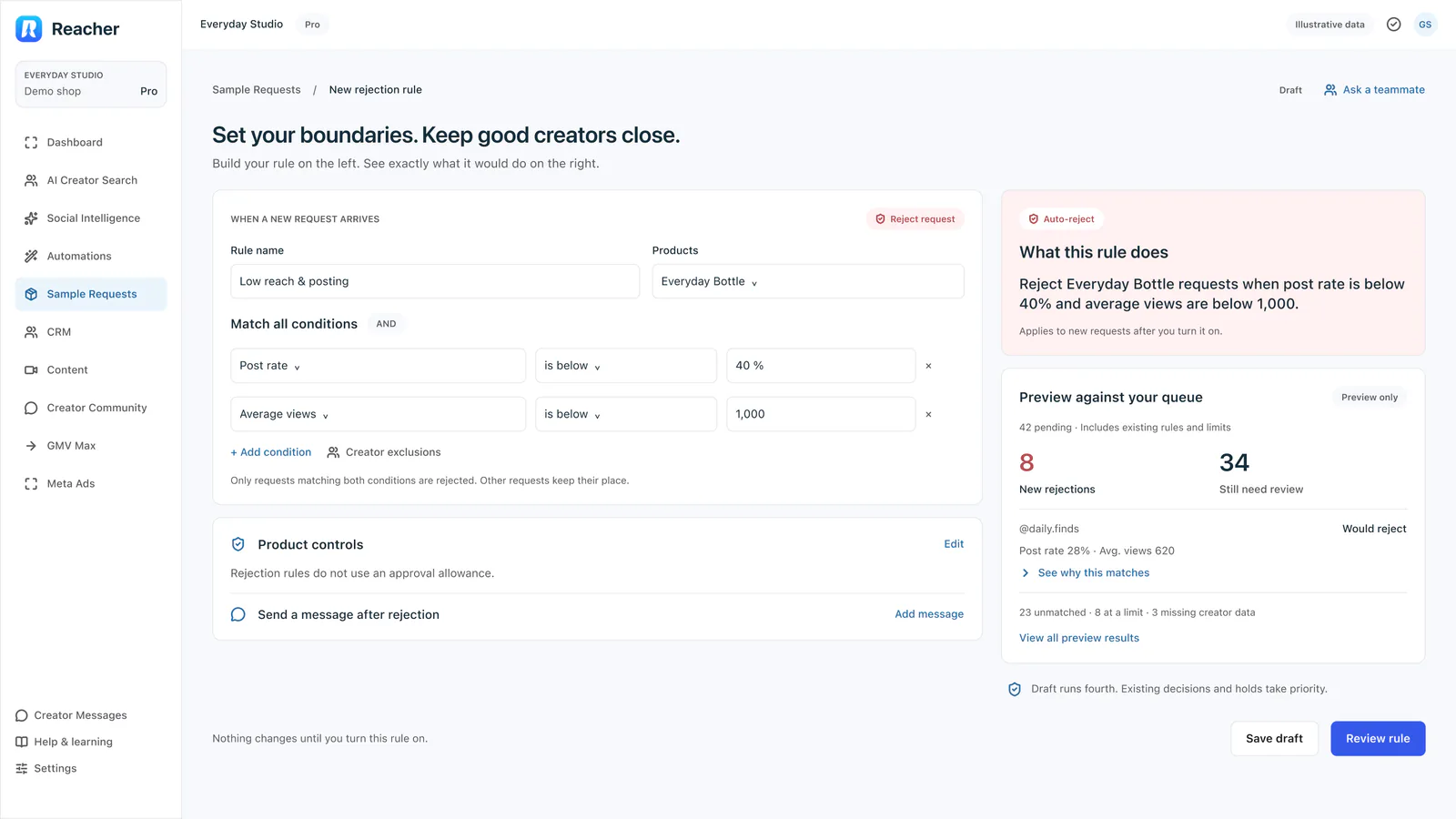
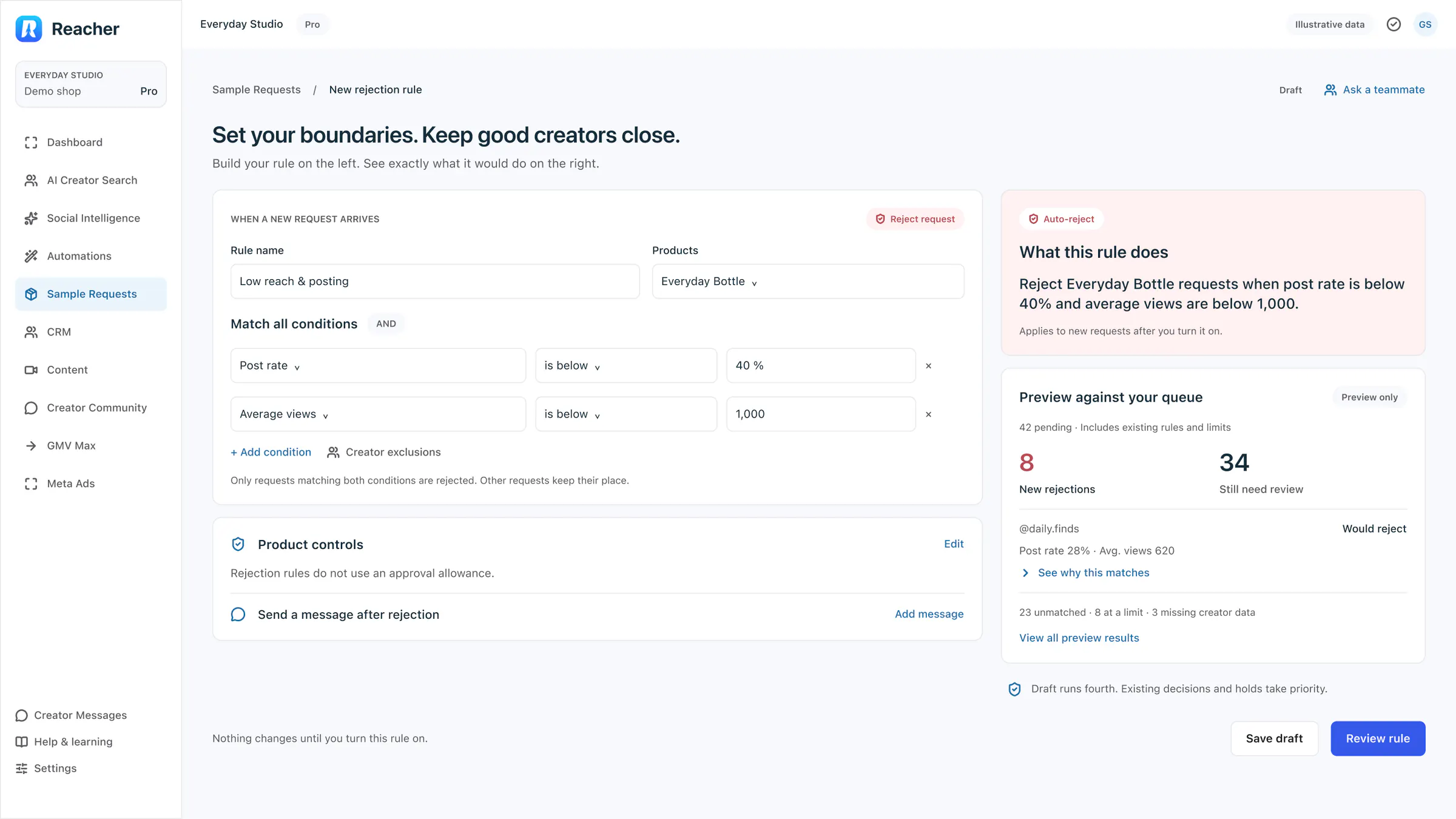
Build a rejection rule
The same builder for rejections, with a preview of 8 new rejections and 34 left for review.
 View full size (opens in a new tab)
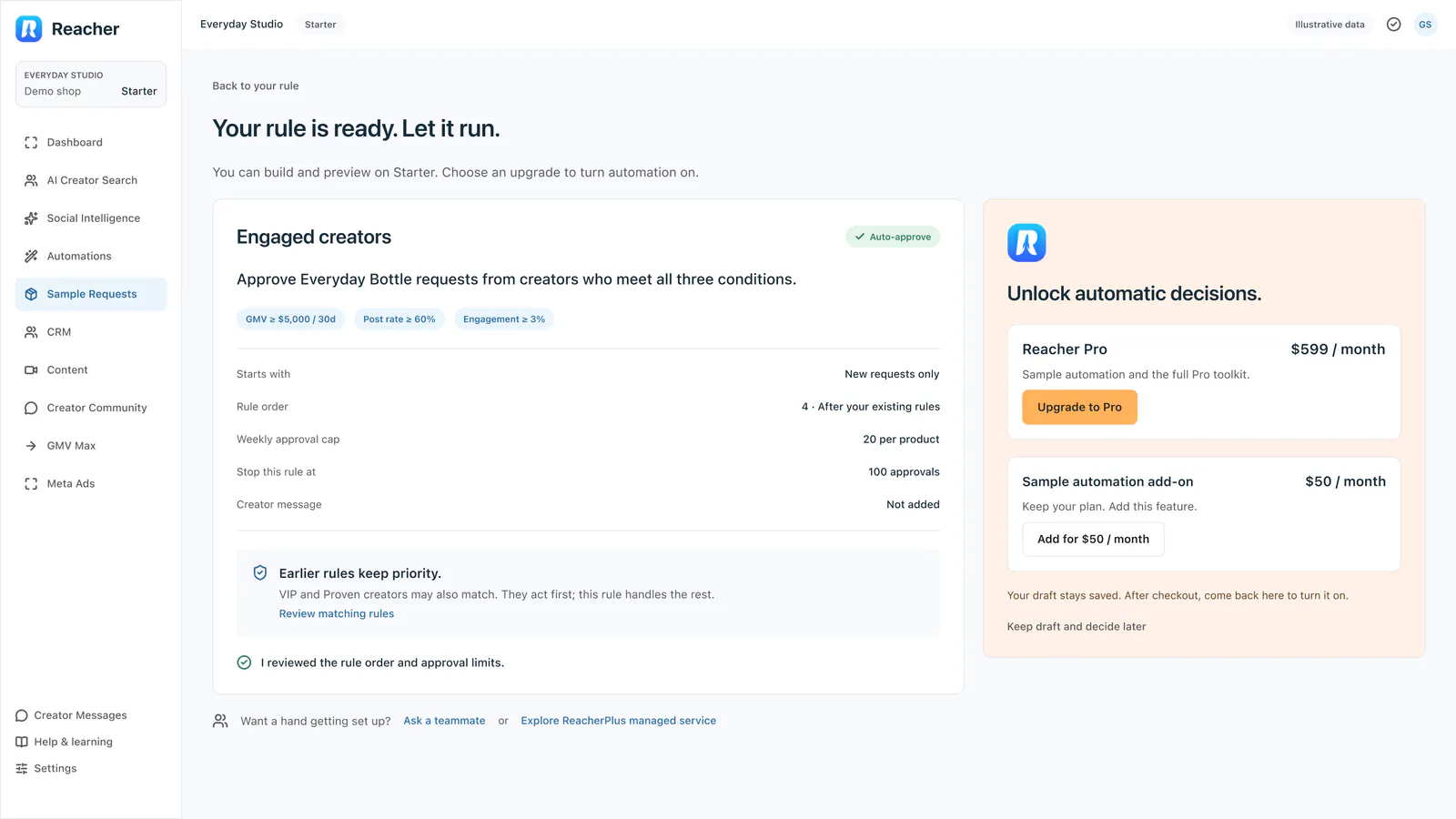
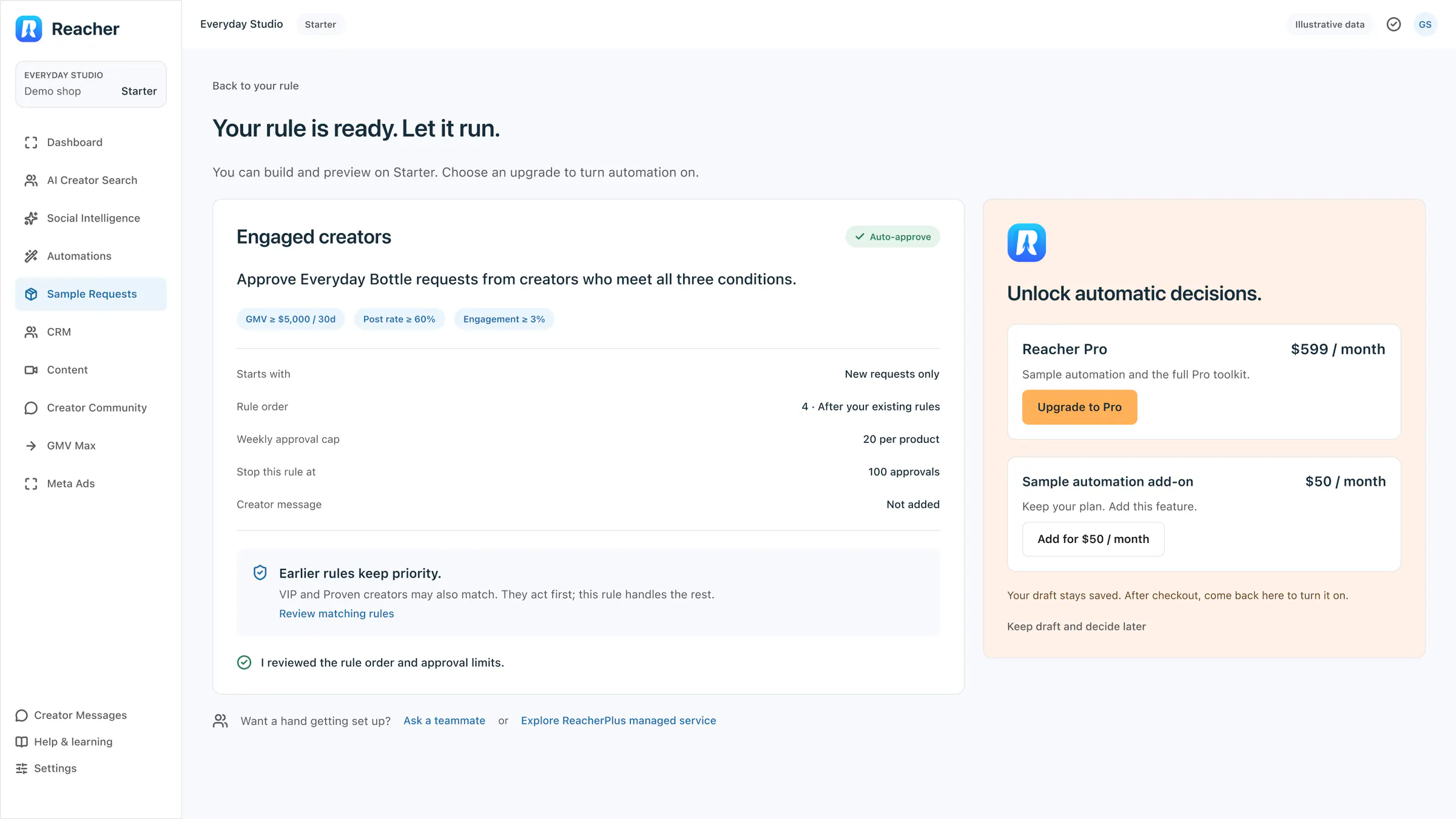
Upgrade inside the review
A Starter account can build and preview a rule, then choose Reacher Pro ($599 a month) or a $50-a-month add-on to turn it on. The draft stays saved.
 View full size (opens in a new tab)
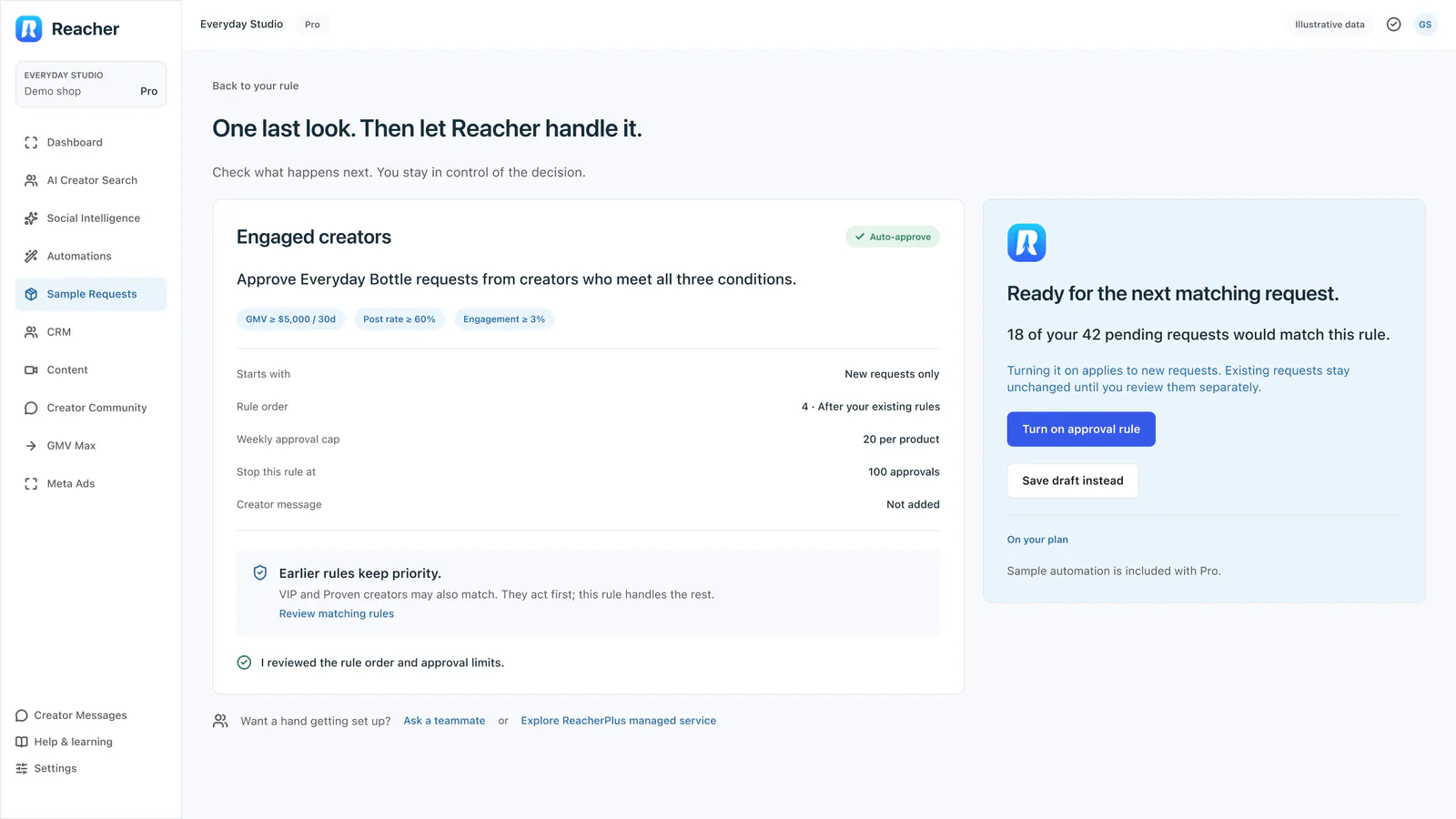
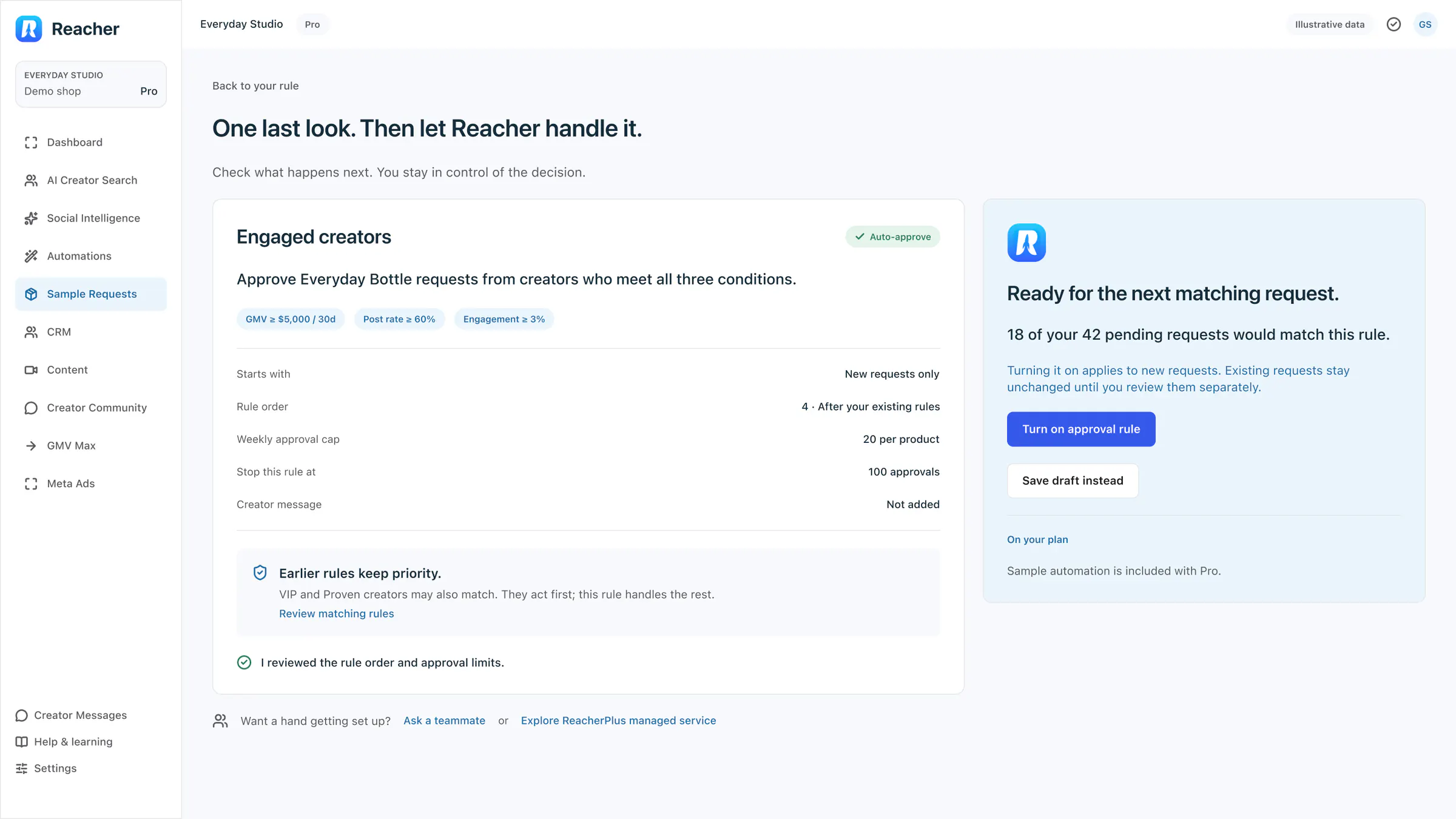
Review and turn on
For a Pro account, one last look at the rule and a clear Turn on approval rule button. 18 of the 42 pending requests would match.
 View full size (opens in a new tab)
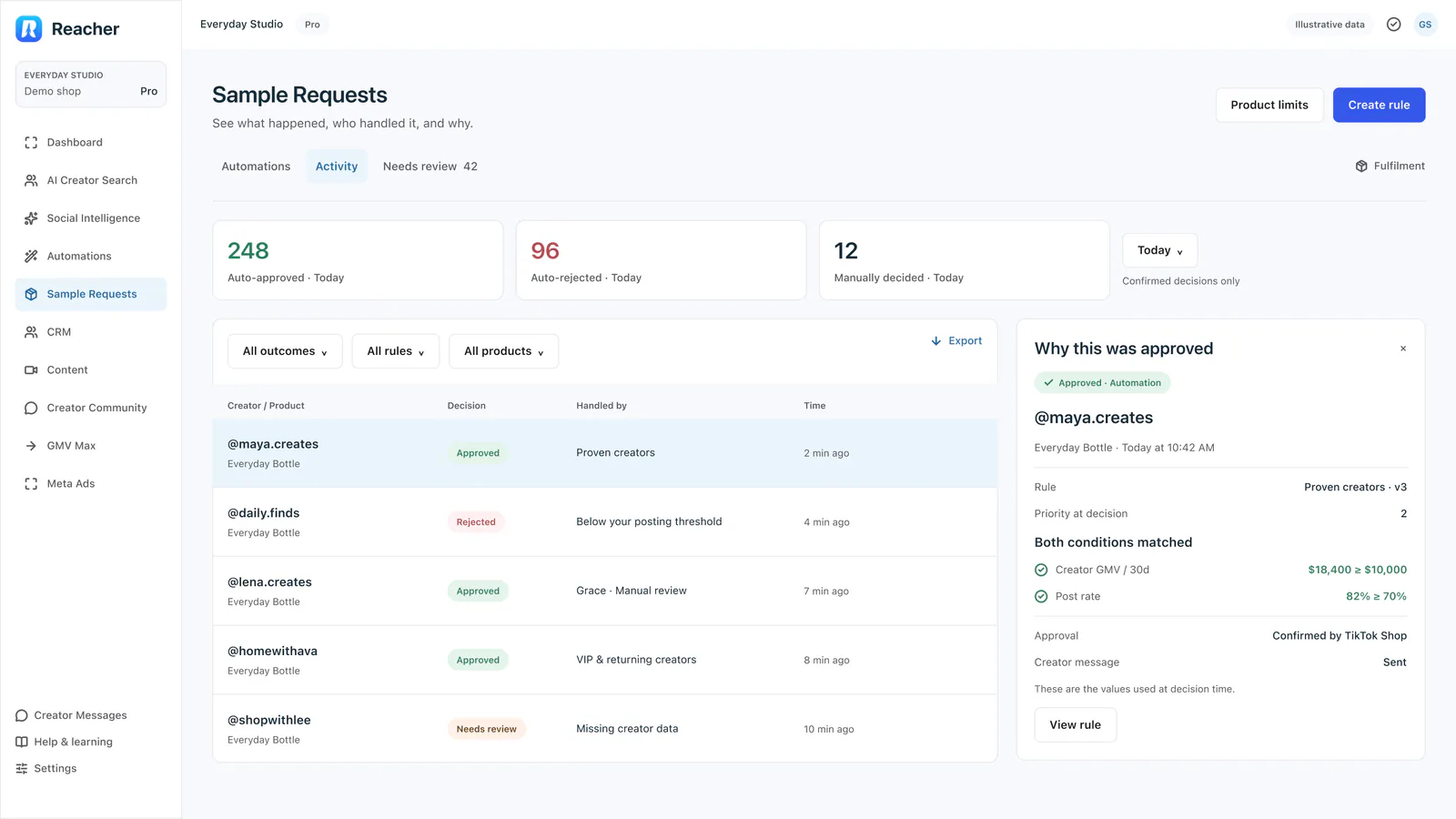
Activity and decision details
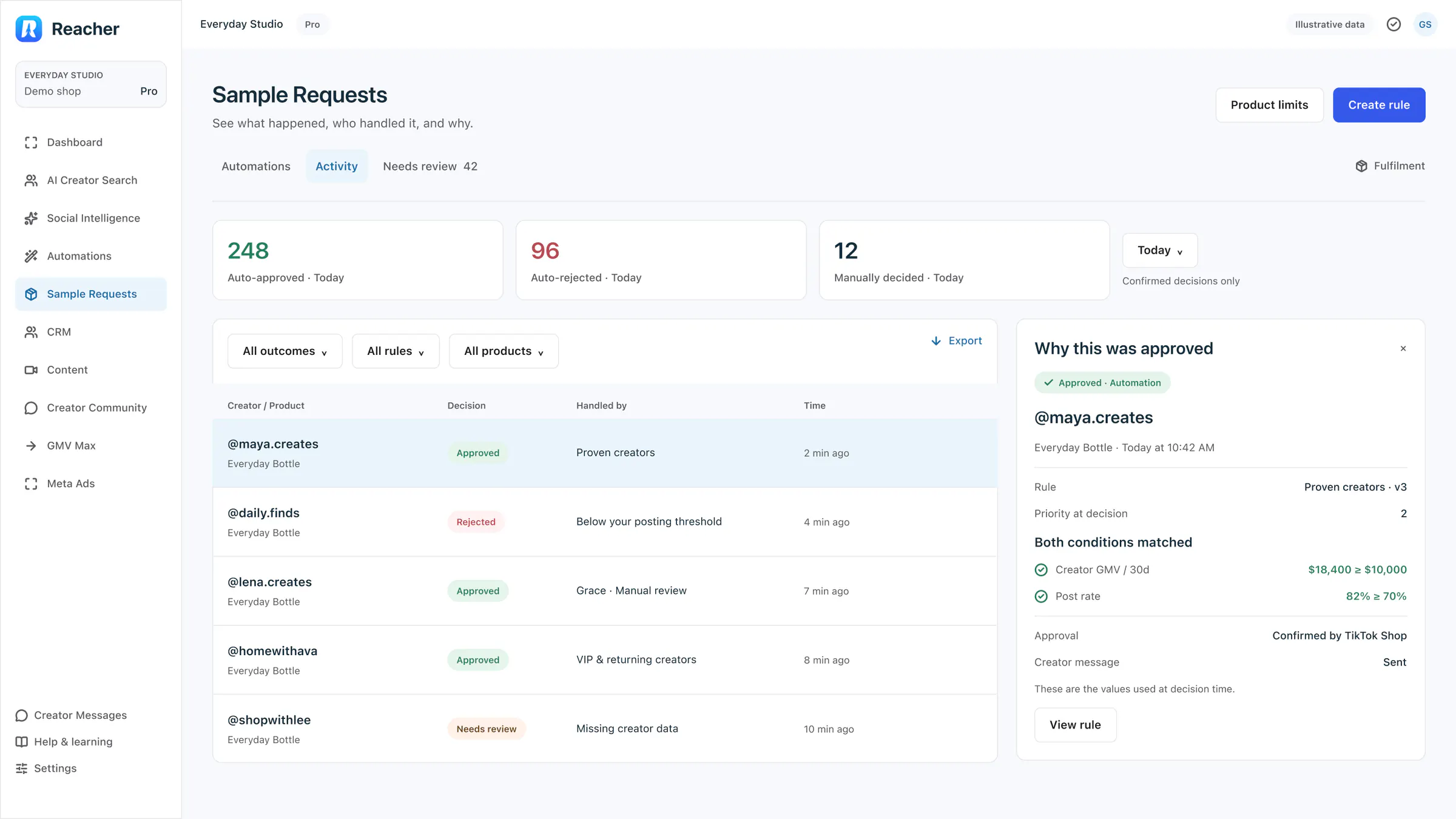
Every decision with who handled it and when, and a panel that says why one request was approved: the rule, its priority and the values that matched.
 View full size (opens in a new tab)
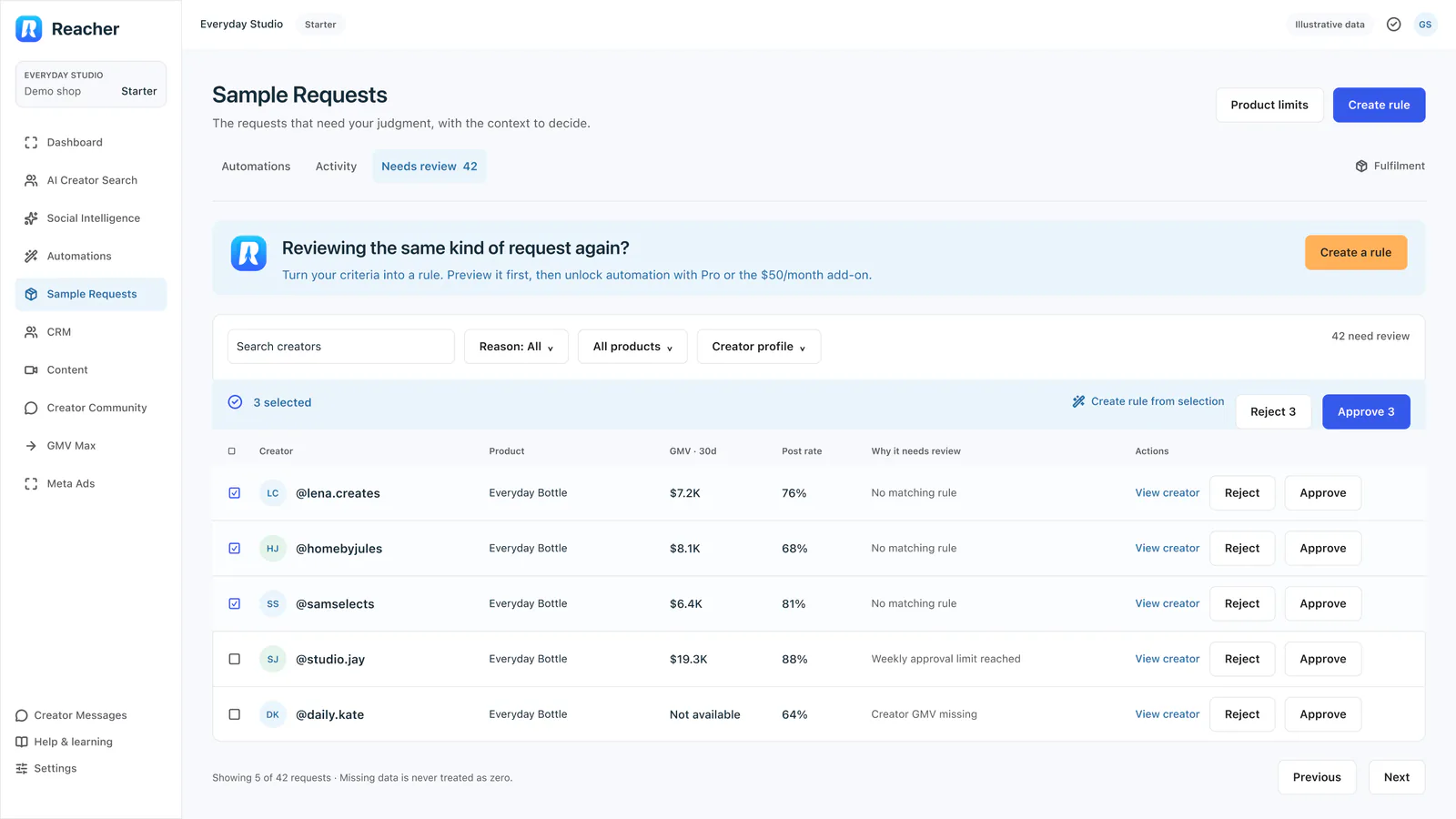
Needs review and manual decisions
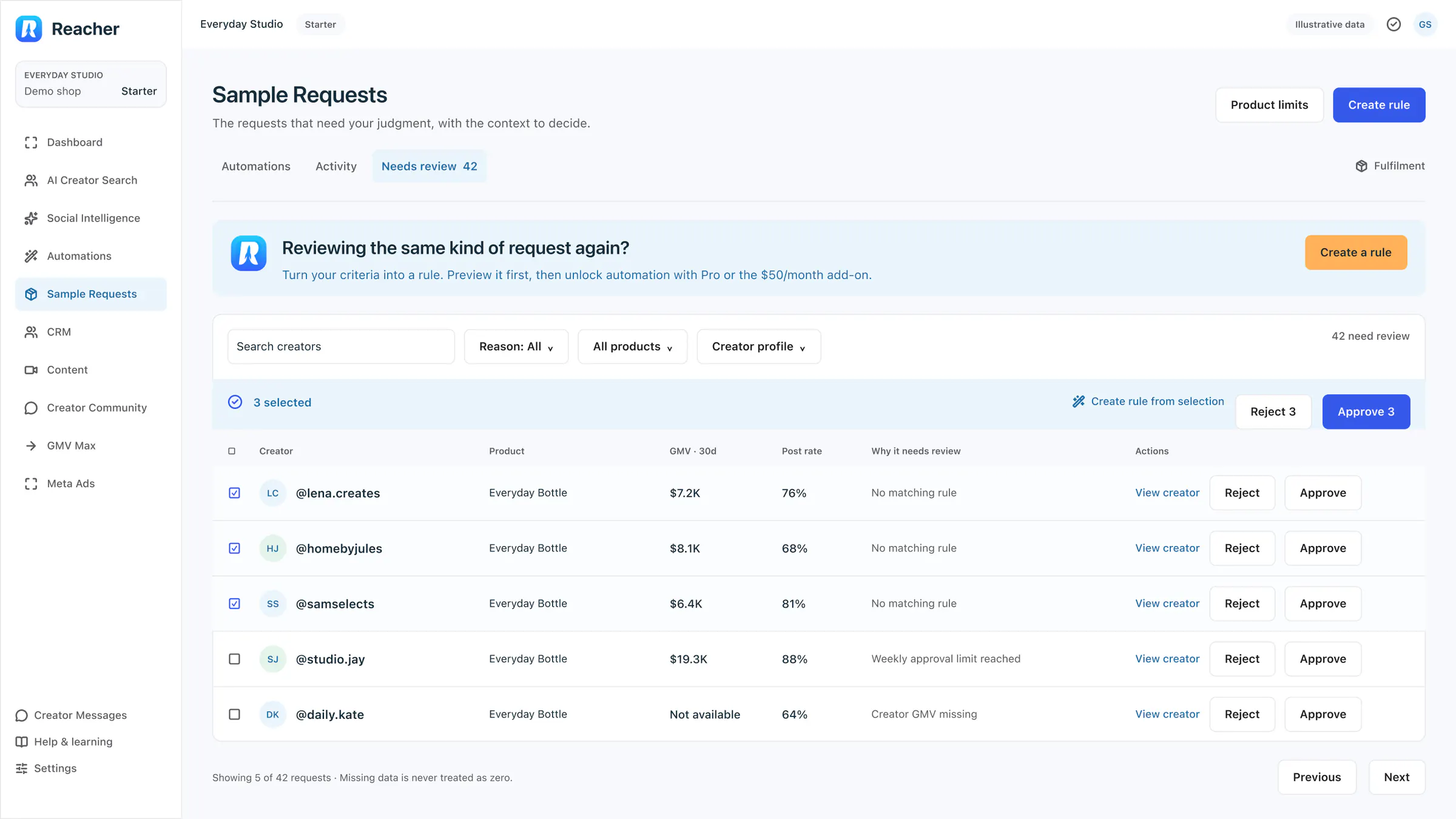
The requests no rule handled, with the reason beside each, bulk Approve and Reject, and a prompt to create a rule from the selection.
 View full size (opens in a new tab)
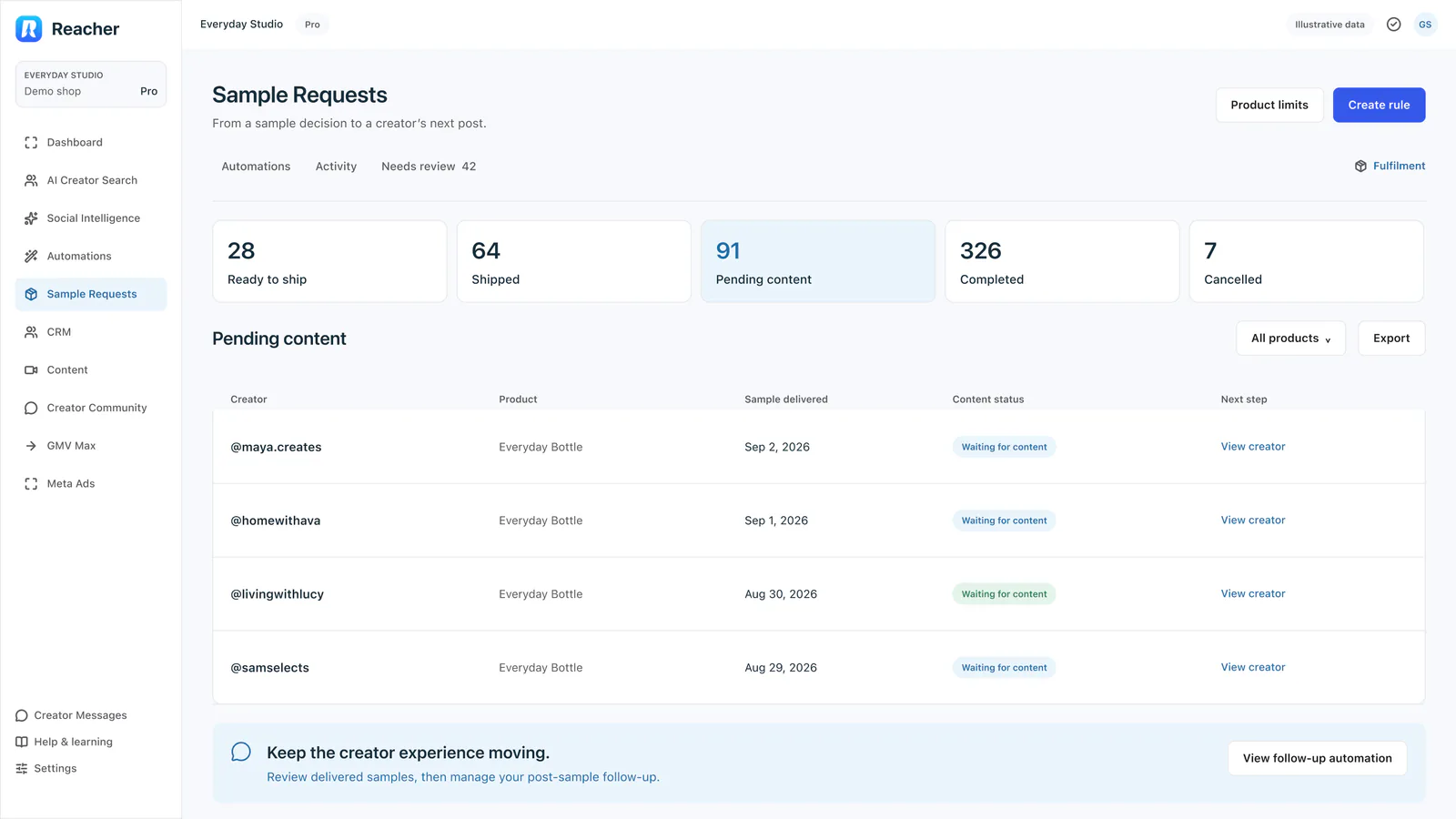
Fulfilment
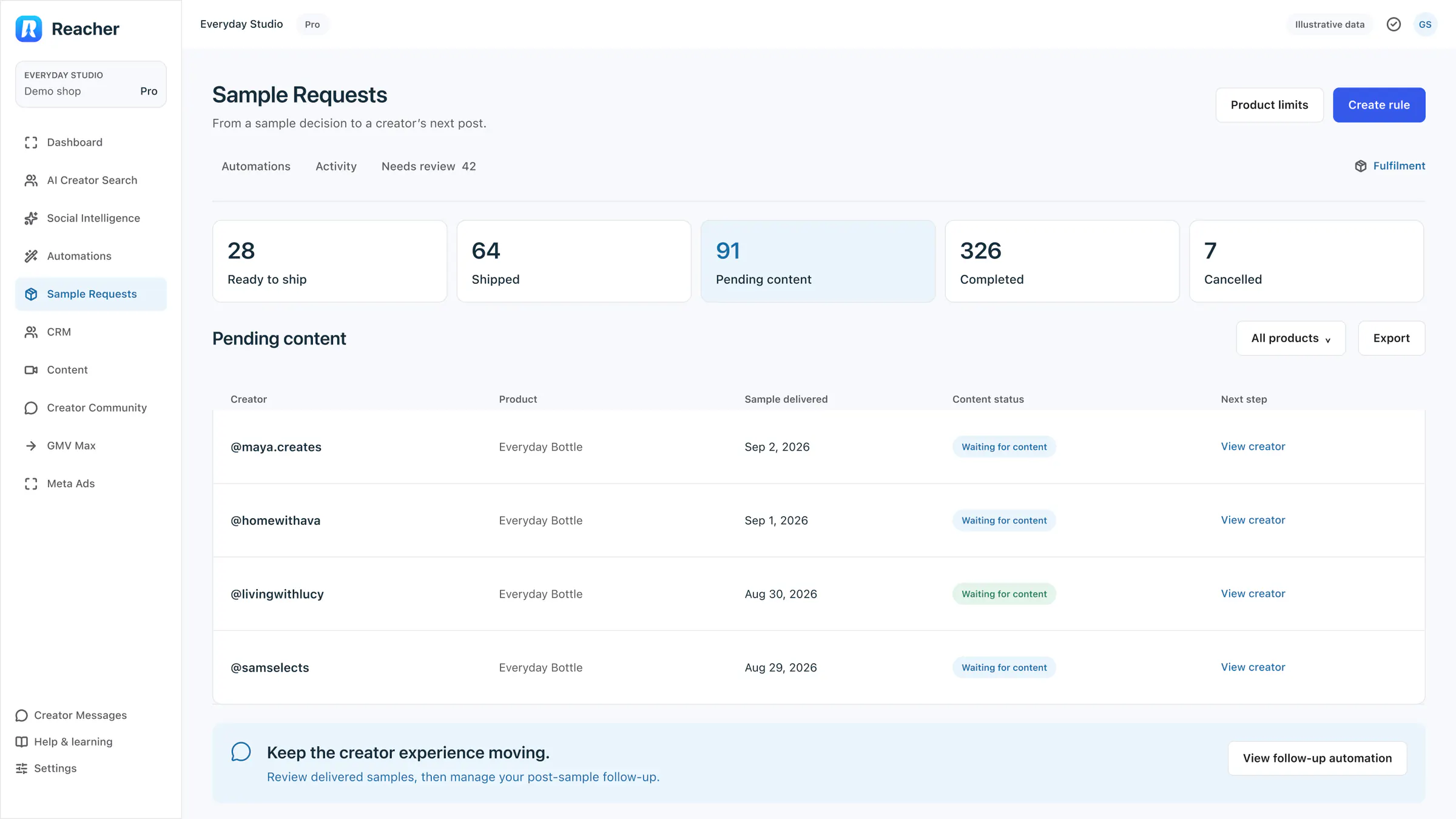
From a sample decision to the creator’s next post: counts for ready to ship, shipped, pending content, completed and cancelled, and the delivered samples waiting for content.
Dialogs
The small moments between those screens.
 View full size (opens in a new tab)
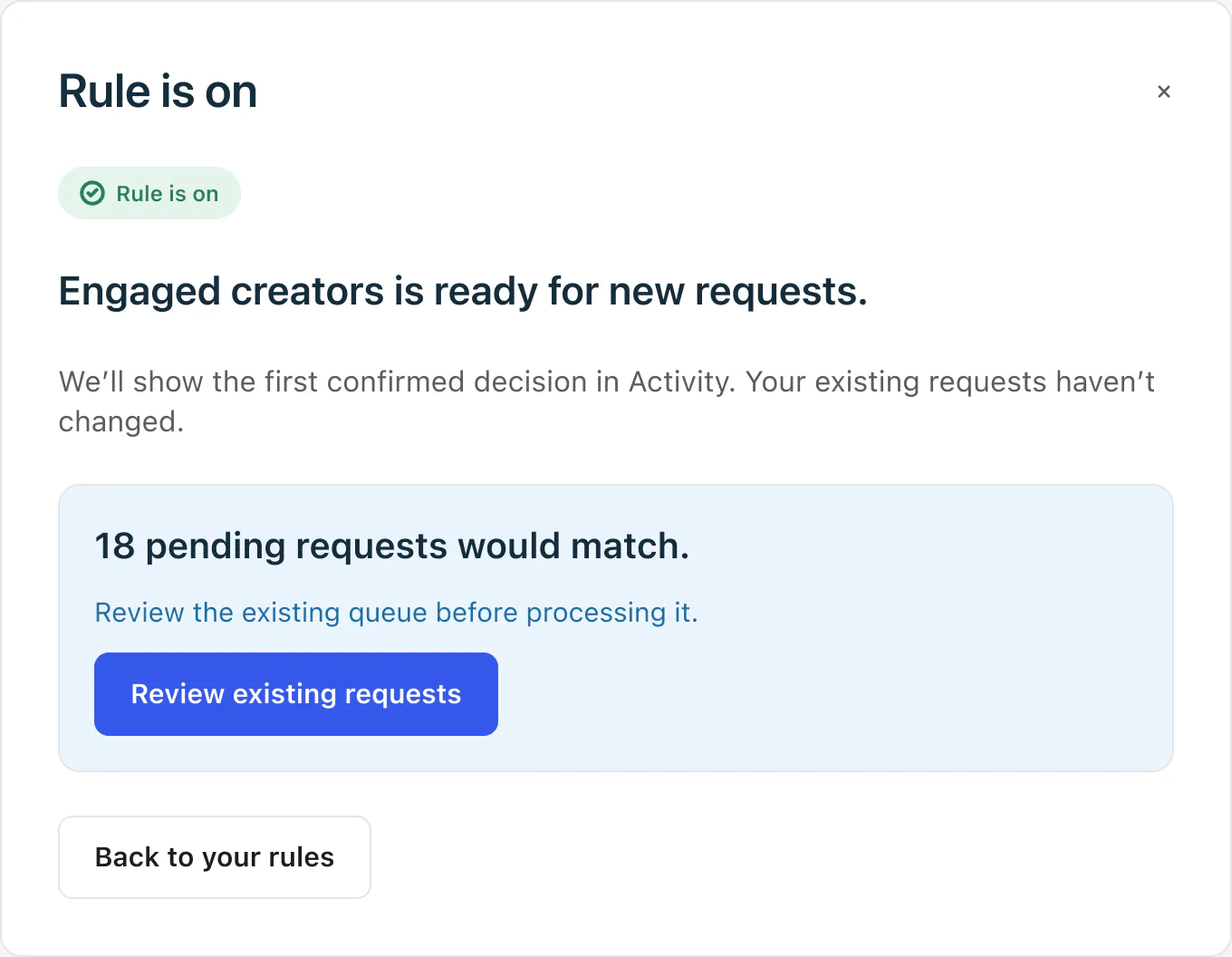
Rule is on
Confirms the rule and offers to review the 18 existing requests that would match.
 View full size (opens in a new tab)
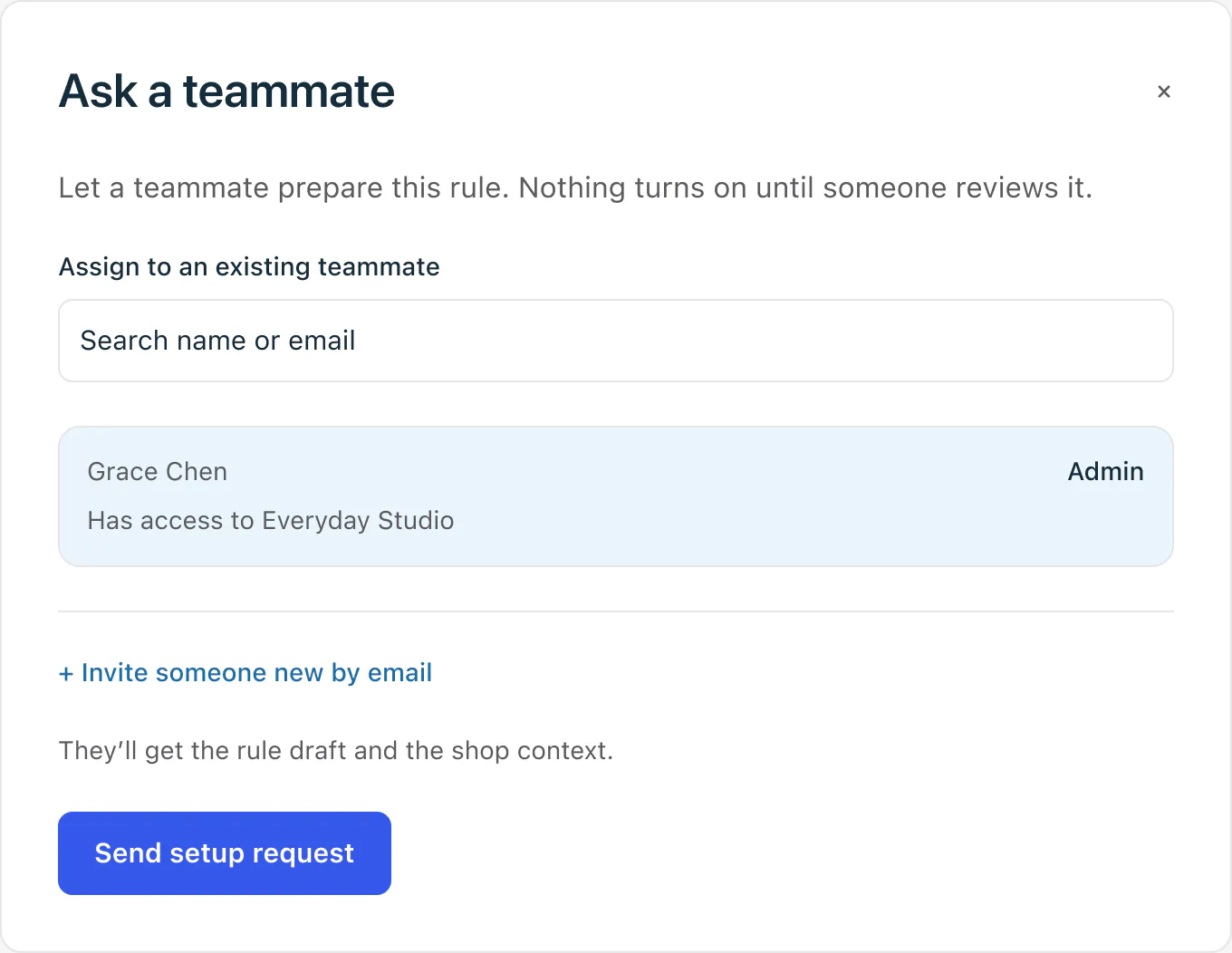
Ask a teammate
Hand the setup to an existing teammate or invite someone by email. Nothing turns on until someone reviews it.
 View full size (opens in a new tab)
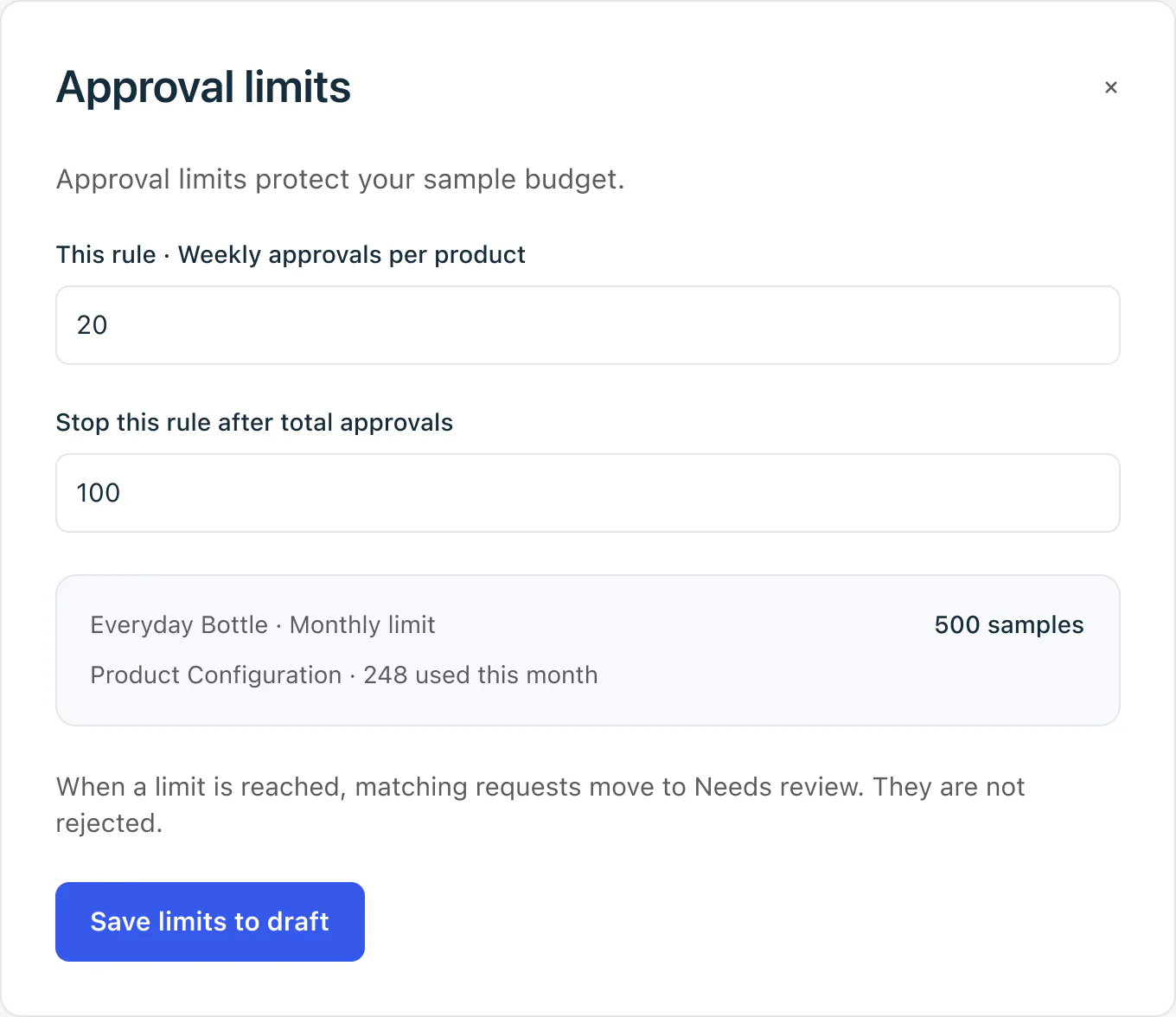
Approval limits
A weekly cap per product and a total after which the rule stops. A request that hits a limit moves to Needs review instead of being rejected.
 View full size (opens in a new tab)
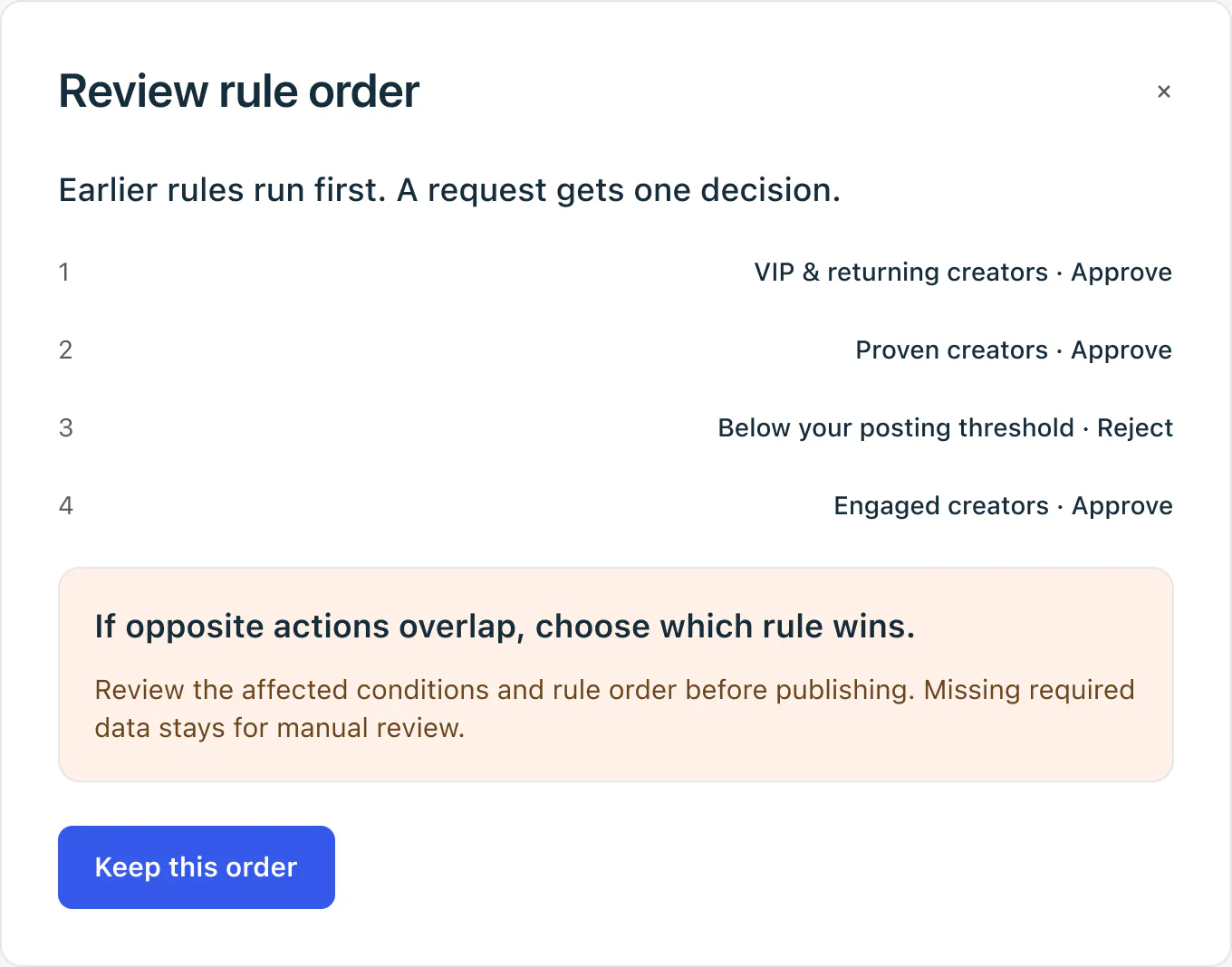
Review rule order
The four rules in priority order, with a warning when approve and reject conditions overlap.
 View full size (opens in a new tab)
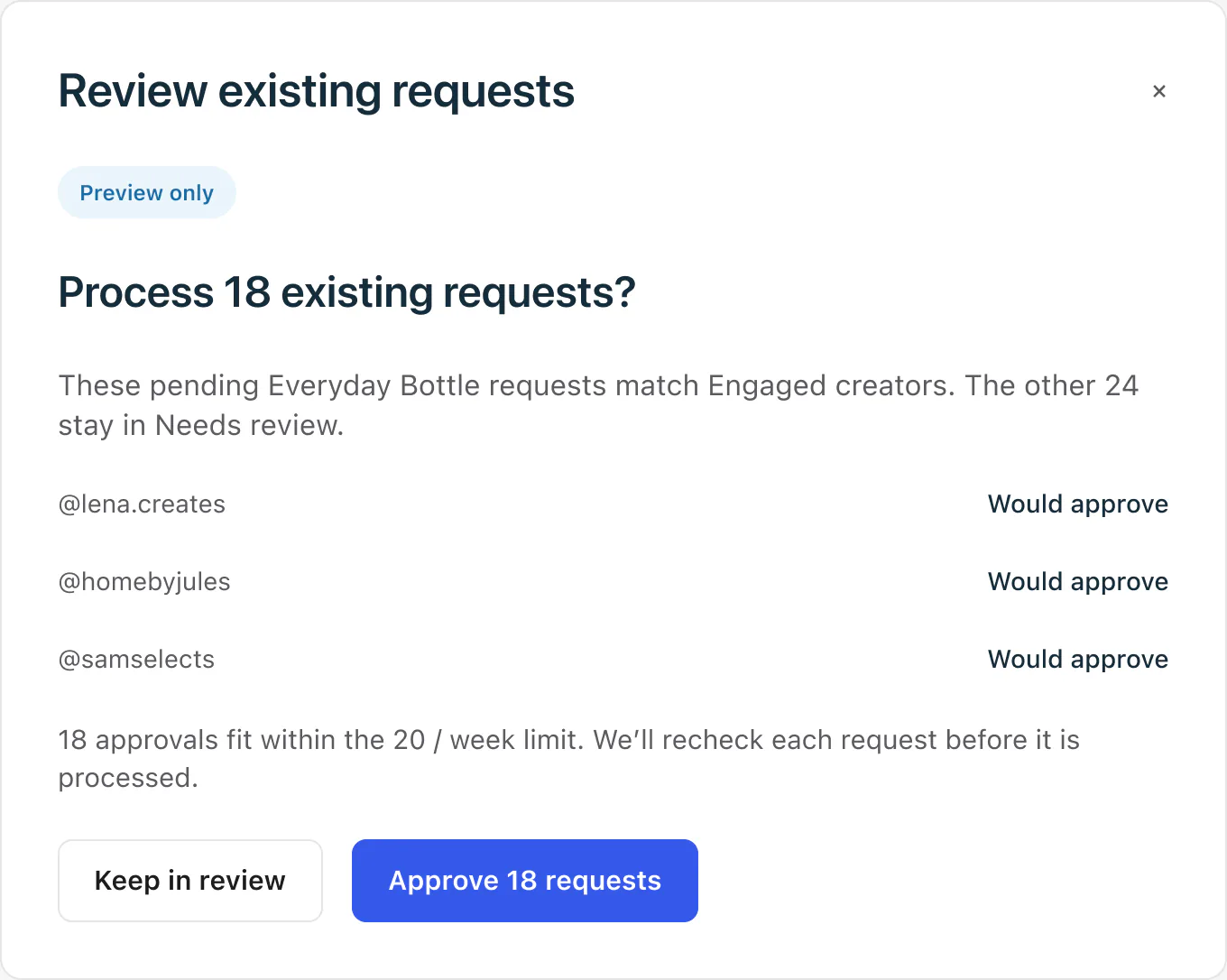
Review existing requests
A preview before processing: 18 existing requests match, and the other 24 stay in Needs review.
 View full size (opens in a new tab)
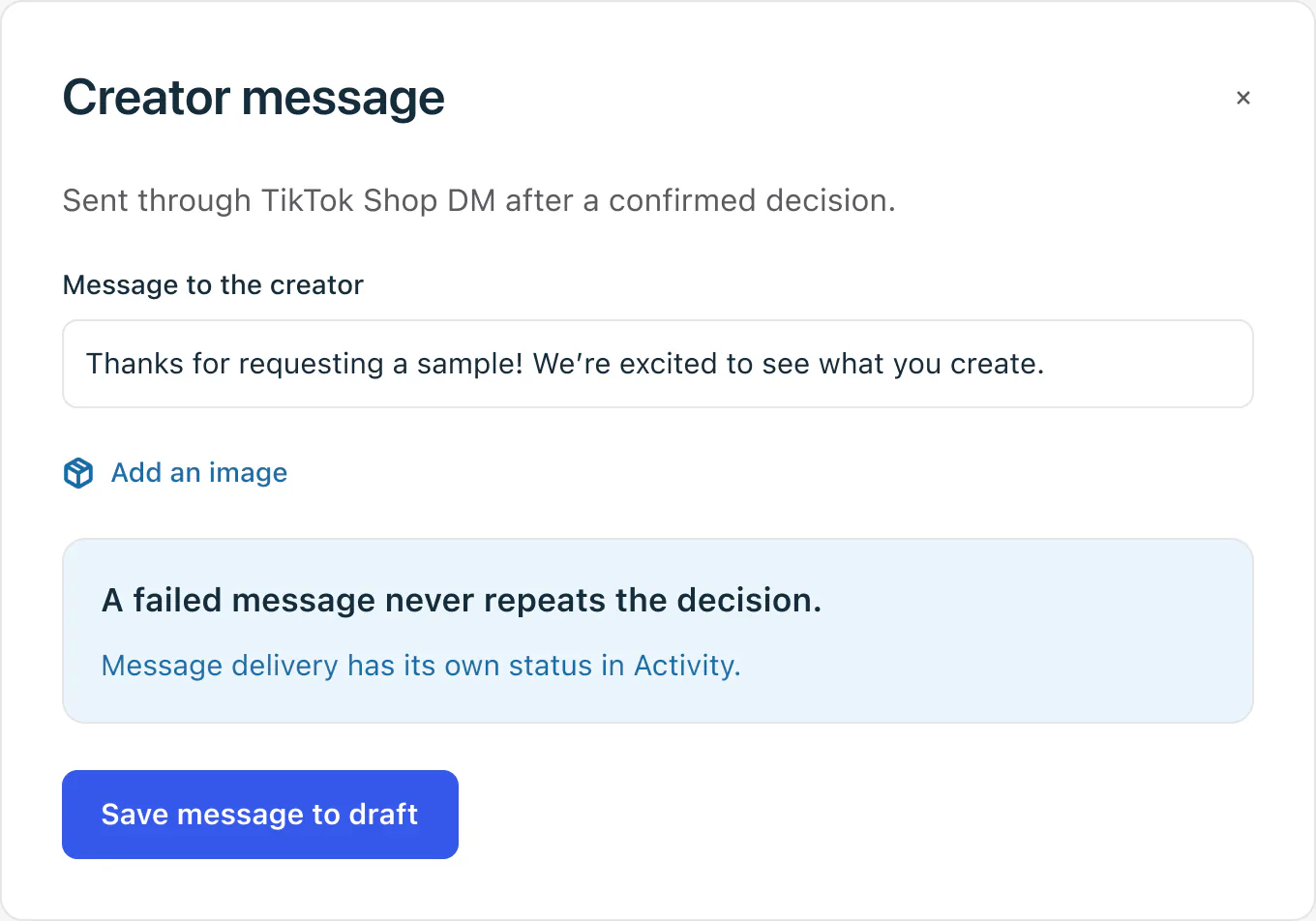
Creator message
The optional message sent to the creator after a confirmed decision. A failed message never repeats the decision.
Directions
Three ways to open the page the first time.
 View full size (opens in a new tab)
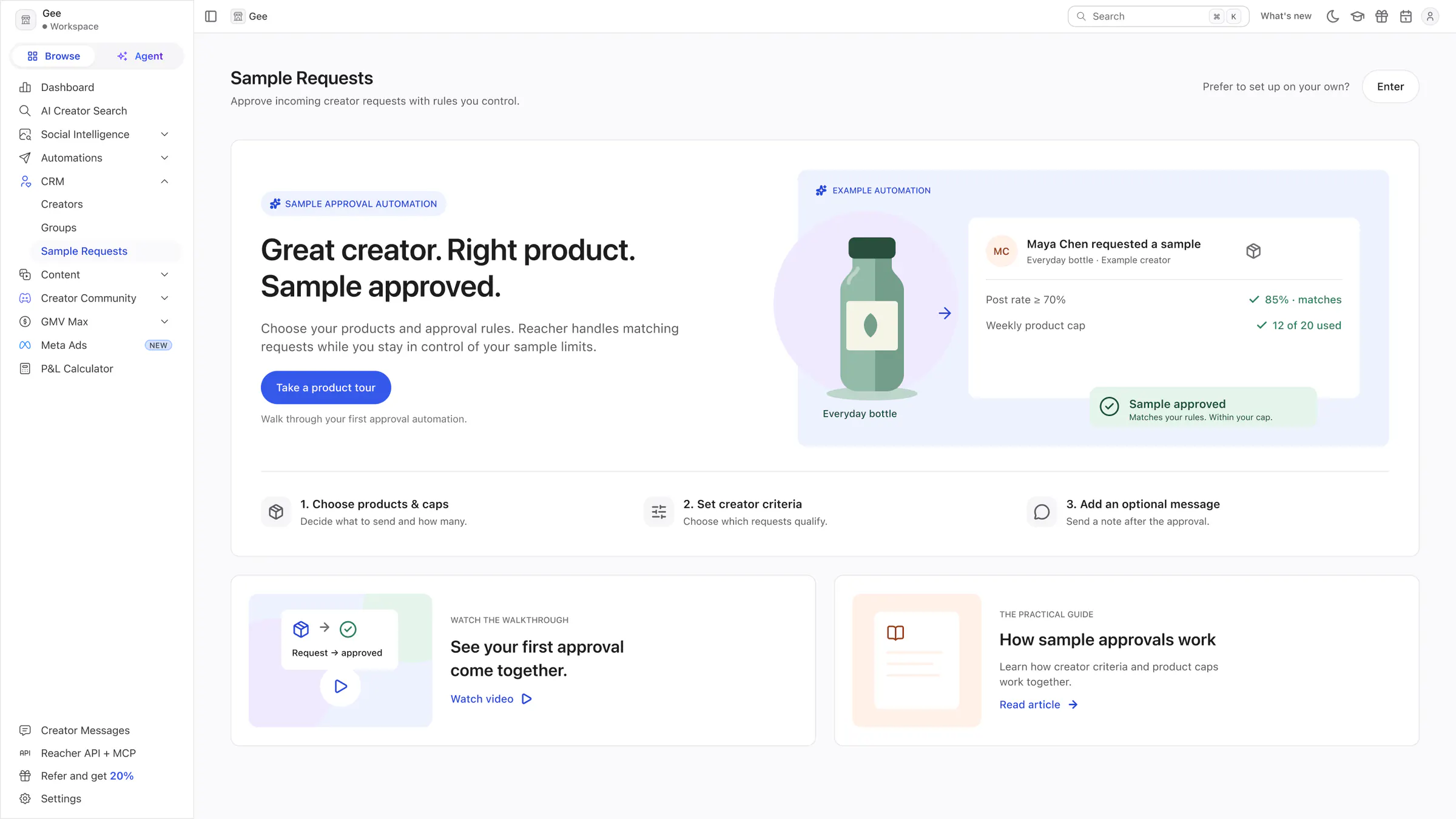
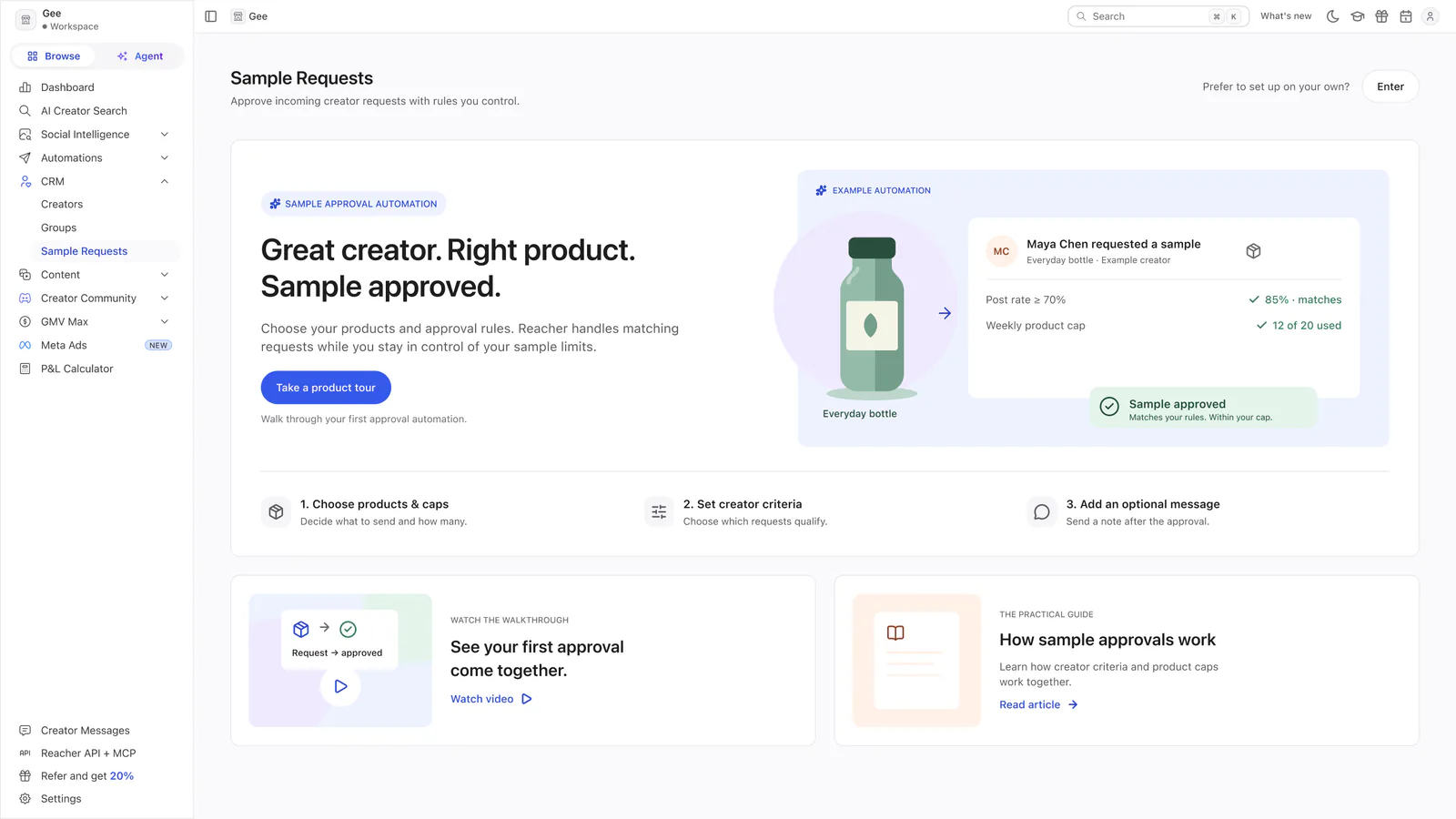
Direction 1 · See it work
Leads with the benefit: an example request turning into an approval, the three setup steps, and a video and an article.
 View full size (opens in a new tab)
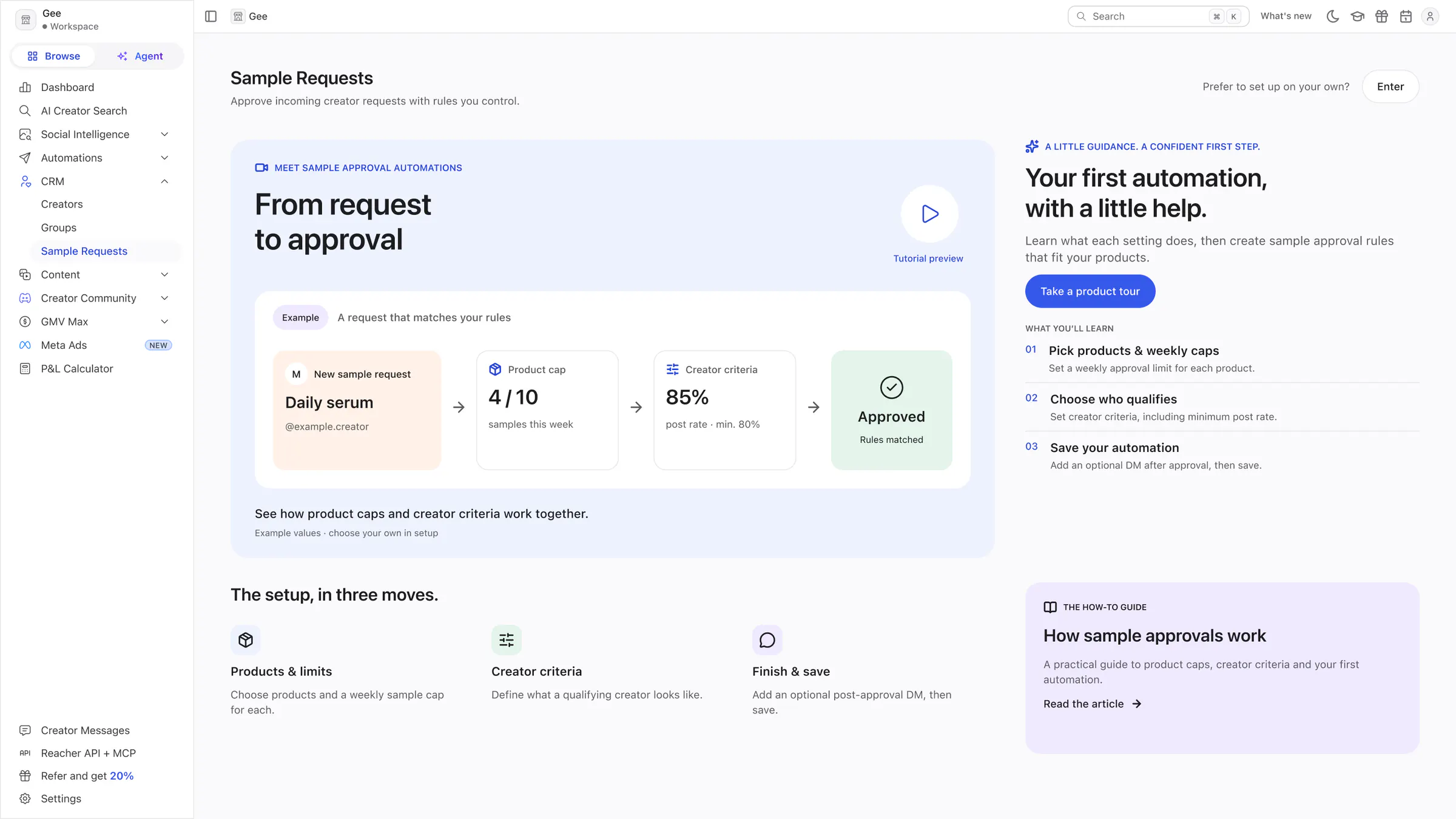
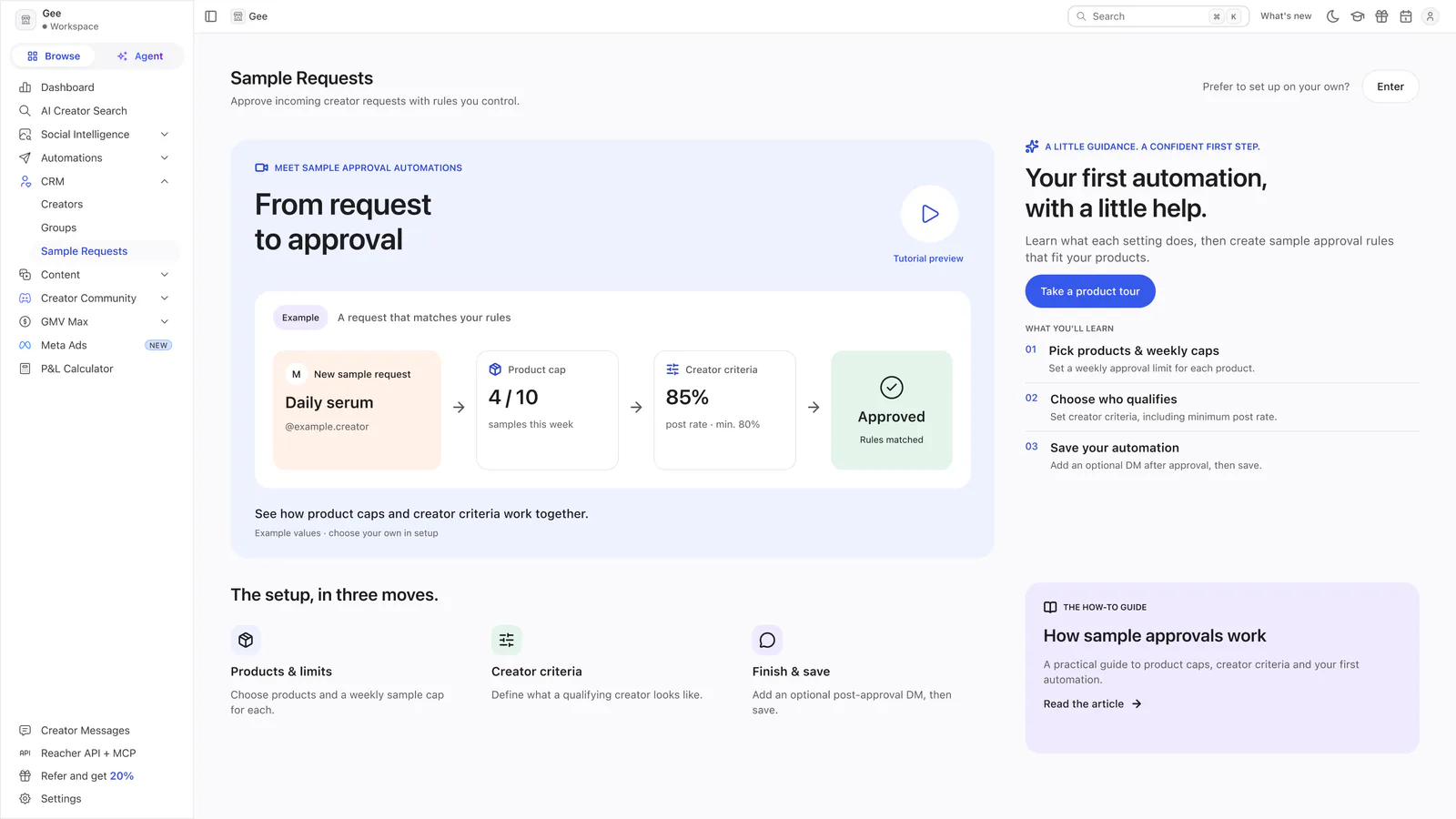
Direction 2 · Watch and learn
Puts a tutorial at the centre: a four-step example from request to approval, an invitation to take a product tour, and the setup in three moves.
 View full size (opens in a new tab)
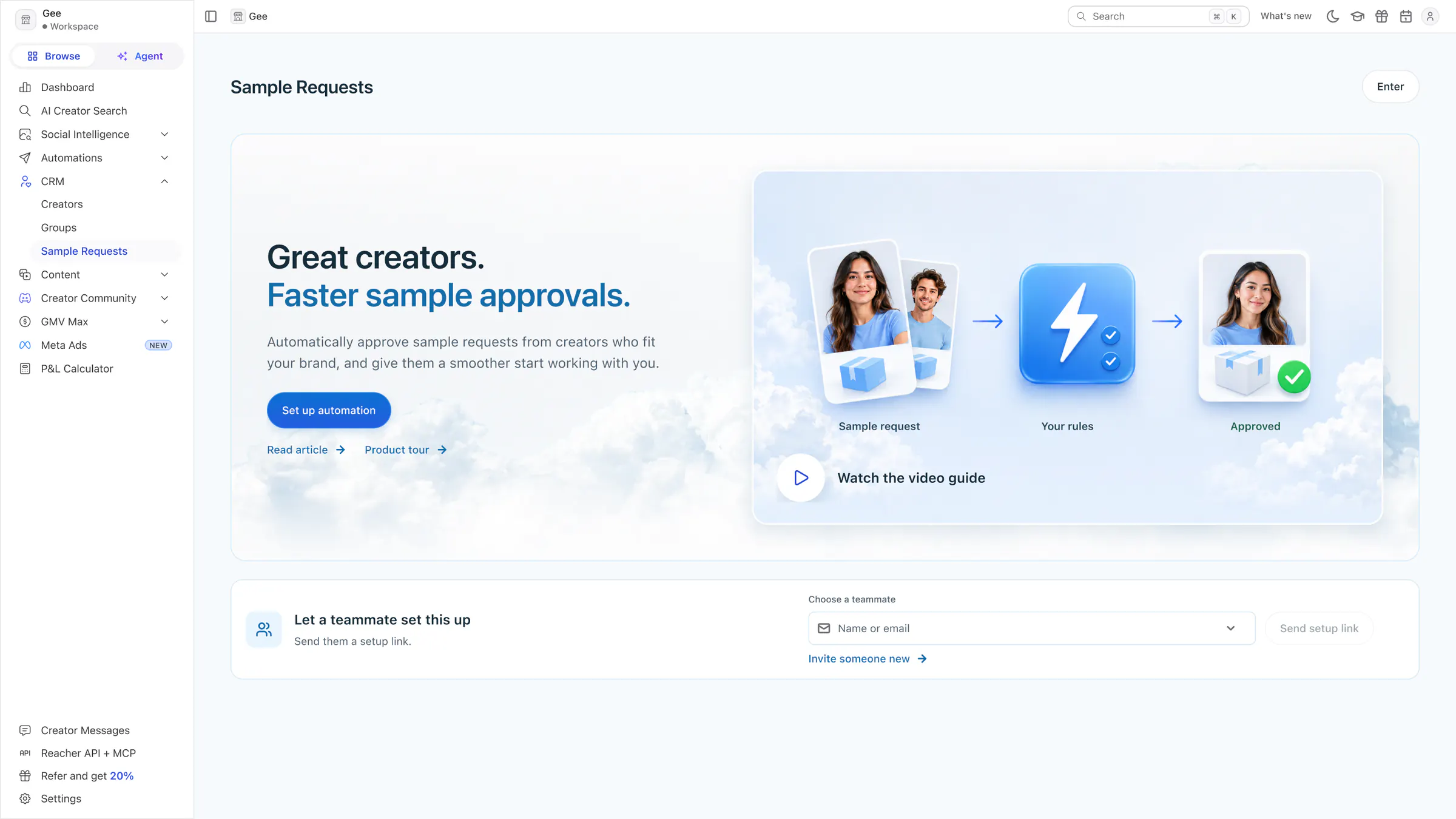
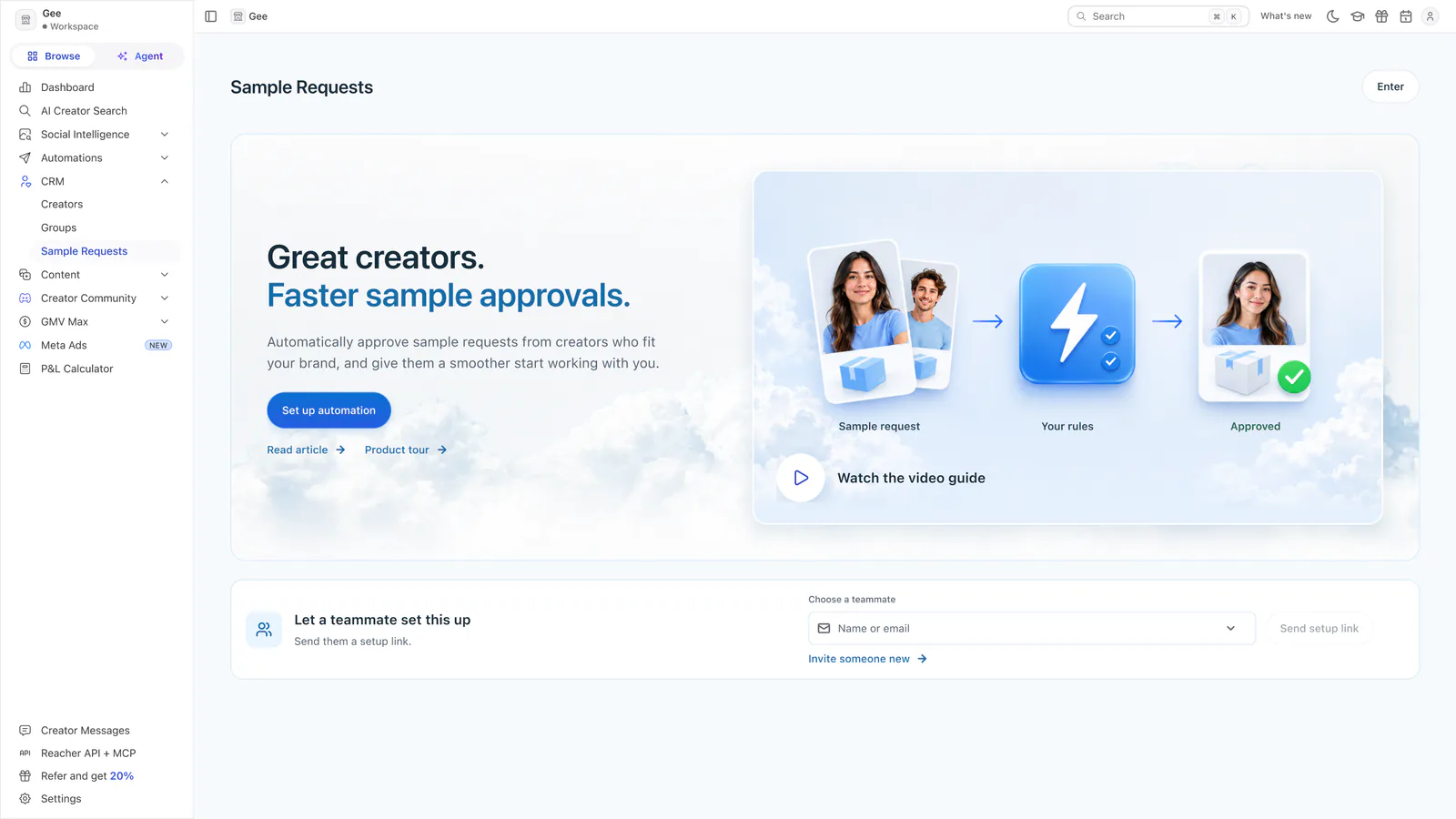
Direction 3 · Simple benefit and video
The simplest of the three: a short benefit headline with a Set up automation button, and a video guide beside the request, rules and approved graphic.